Canva AI: Complete Tutorial for Beginners
Editorial note: Some links in this article are affiliate links — we may earn a commission if you sign up, at no extra cost to you. Every tool is independently tested by our team before being recommended. Read our editorial standards →
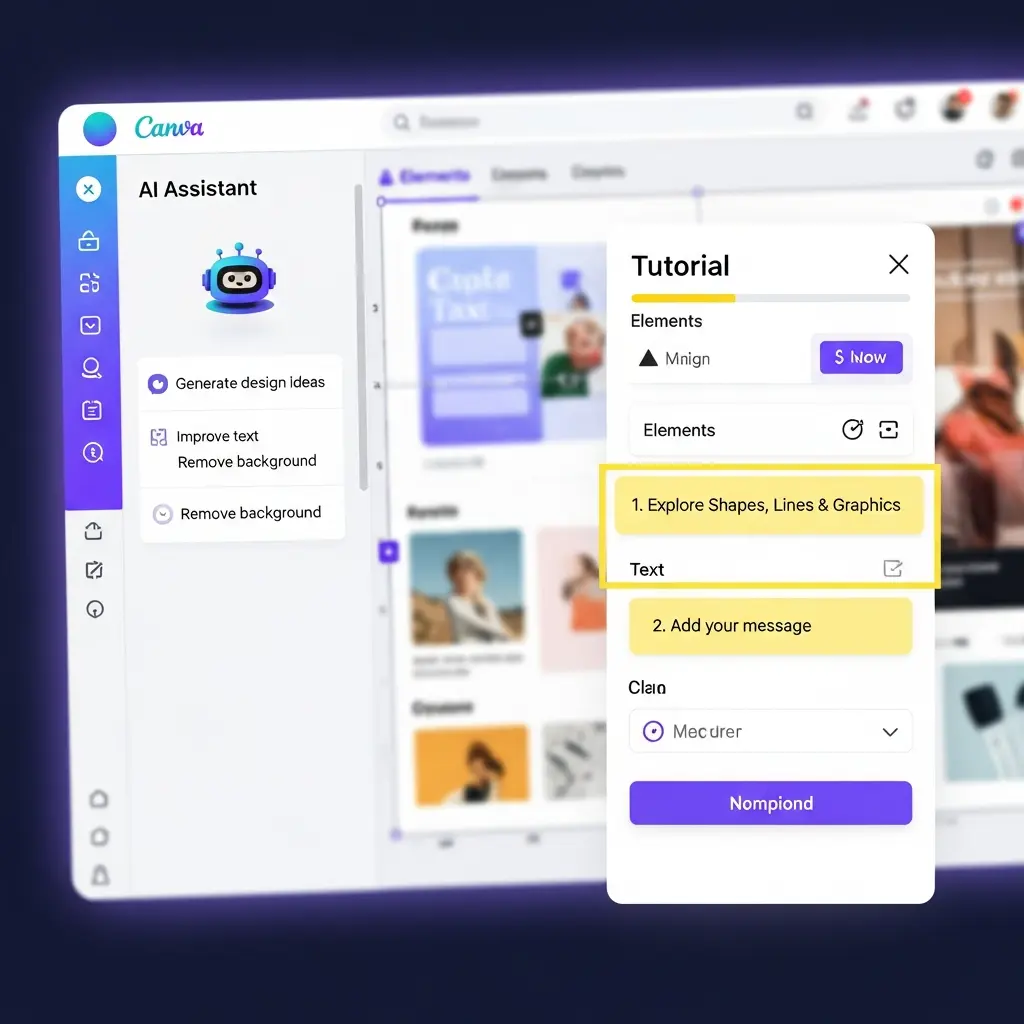
The integration of AI in Canva has opened up a world of possibilities for users. With features like Magic Design, Magic Write, and text-to-image, creating professional-looking designs has never been easier.
Introduction to Canva AI
As of 2026, 65% of businesses use visual content to communicate with their audience, and 90% of marketers believe that high-quality visuals are crucial for their brand's success. With the rise of Artificial Intelligence (AI), creating stunning visual content has become more accessible than ever. One such tool that has revolutionized the design industry is Canva AI. With over 20 million active users, Canva has become a go-to platform for non-designers, small business owners, and social media managers. In this comprehensive tutorial, we will explore the features and capabilities of Canva AI, making it easy for beginners to get started.
Moreover, 75% of marketers believe that AI will play a significant role in their content creation strategy in the next two years. As a beginner, it's essential to understand how to leverage Canva AI to elevate your brand's visual content. Whether you're a teacher, a social media manager, or a small business owner, this tutorial will guide you through the process of creating stunning designs using Canva AI.
The demand for visual content is on the rise, and 70% of businesses plan to increase their investment in visual content in the next year. With Canva AI, you can create professional-looking designs without any prior design experience. The platform offers a wide range of templates, design tools, and AI-powered features that make it easy to create stunning visuals. In the following sections, we will delve into the features and capabilities of Canva AI, providing you with a comprehensive understanding of how to use this powerful tool.
Quick Comparison Table
| Tool | Best For | Starting Price | Free Plan | Rating |
|---|---|---|---|---|
| Canva AI | Non-designers, small business owners | $12.95/month | Yes | 4.8/5 |
| Adobe Creative Cloud | Professionals, large businesses | $20.99/month | No | 4.7/5 |
| Figma | Team collaboration, UI/UX design | $12/month | Yes | 4.8/5 |
| Sketch | Digital design, user experience | $9/month | No | 4.7/5 |
| Visme | Non-designers, small business owners | $25/month | Yes | 4.6/5 |
| PicMonkey | Photo editing, graphic design | $7.99/month | Yes | 4.5/5 |
| Graphic Springs | Logo creation, branding | $19.99/month | Yes | 4.4/5 |
| Brandwatch | Social media management, analytics | $500/month | No | 4.4/5 |
| Pixlr | Photo editing, graphic design | Free | Yes | 4.3/5 |
Magic Design
Magic Design is a powerful feature in Canva AI that allows you to create custom designs from scratch. With this feature, you can upload your own images, select a design style, and let Canva AI create a stunning design for you.
- Key features:
- Upload your own images
- Select from various design styles
- Let Canva AI create a custom design
- Pricing: Included in the Canva Pro plan ($12.95/month)
- Pros and Cons:
- Pros: Easy to use, fast, and high-quality designs
- Cons: Limited control over design elements
- Best for: Non-designers, small business owners, and social media managers who want to create stunning designs quickly.
Magic Write
Magic Write is a feature in Canva AI that allows you to generate high-quality content, such as blog posts, social media posts, and articles. With this feature, you can input a topic, and Canva AI will generate a well-structured and engaging piece of content.
- Key features:
- Input a topic and let Canva AI generate content
- Select from various content styles
- Edit and customize the generated content
- Pricing: Included in the Canva Pro plan ($12.95/month)
- Pros and Cons:
- Pros: Fast, high-quality content, and easy to use
- Cons: Limited control over content structure and style
- Best for: Non-designers, small business owners, and social media managers who want to create high-quality content quickly.
Text-to-Image
The text-to-image feature in Canva AI allows you to generate images from text prompts. With this feature, you can input a description of an image, and Canva AI will generate a stunning image for you.
- Key features:
- Input a text prompt and let Canva AI generate an image
- Select from various image styles
- Edit and customize the generated image
- Pricing: Included in the Canva Pro plan ($12.95/month)
- Pros and Cons:
- Pros: Easy to use, fast, and high-quality images
- Cons: Limited control over image elements
- Best for: Non-designers, small business owners, and social media managers who want to create stunning images quickly.
Background Remover
The background remover feature in Canva AI allows you to remove backgrounds from images quickly and easily. With this feature, you can upload an image, select the background removal tool, and let Canva AI remove the background for you.
- Key features:
- Upload an image and select the background removal tool
- Let Canva AI remove the background
- Edit and customize the image
- Pricing: Included in the Canva Pro plan ($12.95/month)
- Pros and Cons:
- Pros: Easy to use, fast, and high-quality results
- Cons: Limited control over background removal
- Best for: Non-designers, small business owners, and social media managers who want to remove backgrounds from images quickly.
Magic Eraser
The Magic Eraser feature in Canva AI allows you to remove unwanted objects from images quickly and easily. With this feature, you can upload an image, select the Magic Eraser tool, and let Canva AI remove the unwanted object for you.
- Key features:
- Upload an image and select the Magic Eraser tool
- Let Canva AI remove the unwanted object
- Edit and customize the image
- Pricing: Included in the Canva Pro plan ($12.95/month)
- Pros and Cons:
- Pros: Easy to use, fast, and high-quality results
- Cons: Limited control over object removal
- Best for: Non-designers, small business owners, and social media managers who want to remove unwanted objects from images quickly.
AI Presentations
The AI presentations feature in Canva AI allows you to create stunning presentations quickly and easily. With this feature, you can input a topic, select a presentation style, and let Canva AI create a stunning presentation for you.
- Key features:
- Input a topic and select a presentation style
- Let Canva AI create a stunning presentation
- Edit and customize the presentation
- Pricing: Included in the Canva Pro plan ($12.95/month)
- Pros and Cons:
- Pros: Easy to use, fast, and high-quality presentations
- Cons: Limited control over presentation elements
- Best for: Non-designers, small business owners, and social media managers who want to create stunning presentations quickly.
Brand Kit
The brand kit feature in Canva AI allows you to create a consistent brand identity across all your visual content. With this feature, you can upload your brand's logo, select a color palette, and let Canva AI create a brand kit for you.
- Key features:
- Upload your brand's logo and select a color palette
- Let Canva AI create a brand kit
- Edit and customize the brand kit
- Pricing: Included in the Canva Pro plan ($12.95/month)
- Pros and Cons:
- Pros: Easy to use, fast, and high-quality brand kits
- Cons: Limited control over brand kit elements
- Best for: Non-designers, small business owners, and social media managers who want to create a consistent brand identity.
Magic Edit
The Magic Edit feature in Canva AI allows you to edit and customize your designs quickly and easily. With this feature, you can upload a design, select the Magic Edit tool, and let Canva AI edit and customize the design for you.
- Key features:
- Upload a design and select the Magic Edit tool
- Let Canva AI edit and customize the design
- Edit and customize the design further
- Pricing: Included in the Canva Pro plan ($12.95/month)
- Pros and Cons:
- Pros: Easy to use, fast, and high-quality results
- Cons: Limited control over design elements
- Best for: Non-designers, small business owners, and social media managers who want to edit and customize their designs quickly.
Bulk Create
The bulk create feature in Canva AI allows you to create multiple designs at once quickly and easily. With this feature, you can upload a template, select the bulk create tool, and let Canva AI create multiple designs for you.
- Key features:
- Upload a template and select the bulk create tool
- Let Canva AI create multiple designs
- Edit and customize the designs
- Pricing: Included in the Canva Pro plan ($12.95/month)
- Pros and Cons:
- Pros: Easy to use, fast, and high-quality results
- Cons: Limited control over design elements
- Best for: Non-designers, small business owners, and social media managers who want to create multiple designs quickly.
How to Choose the Right Tool
When choosing a design tool, there are several factors to consider. Here are three practical criteria to help you make the right choice:
- Ease of use: Consider how easy the tool is to use, especially if you're a non-designer. Look for tools with a user-friendly interface and intuitive features.
- Features and capabilities: Consider the features and capabilities of the tool, such as Magic Design, Magic Write, and text-to-image. Look for tools that offer a wide range of features and capabilities that meet your needs.
- Pricing and plans: Consider the pricing and plans of the tool, including the free plan and starting price. Look for tools that offer affordable pricing and flexible plans that meet your needs.
Getting Started: Step-by-Step
Here are six steps to get started with Canva AI:
- Sign up for a Canva account: Go to the Canva website and sign up for a free account.
- Choose a template or design: Browse the Canva template library and choose a template or design that meets your needs.
- Upload your own images: Upload your own images to Canva and use them in your designs.
- Use the Magic Design feature: Use the Magic Design feature to create a custom design from scratch.
- Edit and customize your design: Edit and customize your design using the Magic Edit feature.
- Download and share your design: Download and share your design on social media, your website, or other platforms.
Common Mistakes to Avoid
Here are three common mistakes to avoid when using Canva AI:
- Not using high-quality images: Using low-quality images can result in poor design quality. Make sure to use high-quality images in your designs.
- Not customizing your design: Not customizing your design can result in a generic and unprofessional look. Make sure to edit and customize your design using the Magic Edit feature.
- Not saving your design: Not saving your design can result in losing your work. Make sure to save your design regularly and download it when you're finished.
FAQ
Here are six frequently asked questions about Canva AI:
- What is Canva AI?: Canva AI is a design tool that uses artificial intelligence to help users create stunning designs quickly and easily.
- What features does Canva AI offer?: Canva AI offers a wide range of features, including Magic Design, Magic Write, text-to-image, and background remover.
- How much does Canva AI cost?: Canva AI offers a free plan and several paid plans, including the Canva Pro plan ($12.95/month) and the Canva Enterprise plan (custom pricing).
- Is Canva AI easy to use?: Yes, Canva AI is easy to use, even for non-designers. The tool offers a user-friendly interface and intuitive features.
- Can I use Canva AI for commercial purposes?: Yes, you can use Canva AI for commercial purposes, including creating designs for clients and selling products with Canva AI designs.
- Does Canva AI offer customer support?: Yes, Canva AI offers customer support, including email support, live chat support, and a comprehensive knowledge base.
Conclusion
In conclusion, Canva AI is a powerful design tool that offers a wide range of features and capabilities, including Magic Design, Magic Write, and text-to-image. With its user-friendly interface and intuitive features, Canva AI is easy to use, even for non-designers. Whether you're a small business owner, a social media manager, or a teacher, Canva AI is a great tool to create stunning designs quickly and easily. By following the steps outlined in this tutorial, you can get started with Canva AI and take your designs to the next level. Remember to choose the right tool for your needs, get started with the step-by-step guide, and avoid common mistakes to ensure the best results. With Canva AI, you can create professional-looking designs without any prior design experience, making it an essential tool for anyone looking to elevate their brand's visual content.
Tags
Written by

Sourabh Gupta
Founder & Data Scientist, AI Tools Specialist · 2+ years in AI/ML
Sourabh tests every AI tool he writes about — hands-on, with real use cases. His background in data science means he goes beyond marketing claims to benchmark actual performance, cost, and reliability for developers and creators.
Full bio & editorial process →