How to Make Your First AI Image: Complete Guide
Editorial note: Some links in this article are affiliate links — we may earn a commission if you sign up, at no extra cost to you. Every tool is independently tested by our team before being recommended. Read our editorial standards →
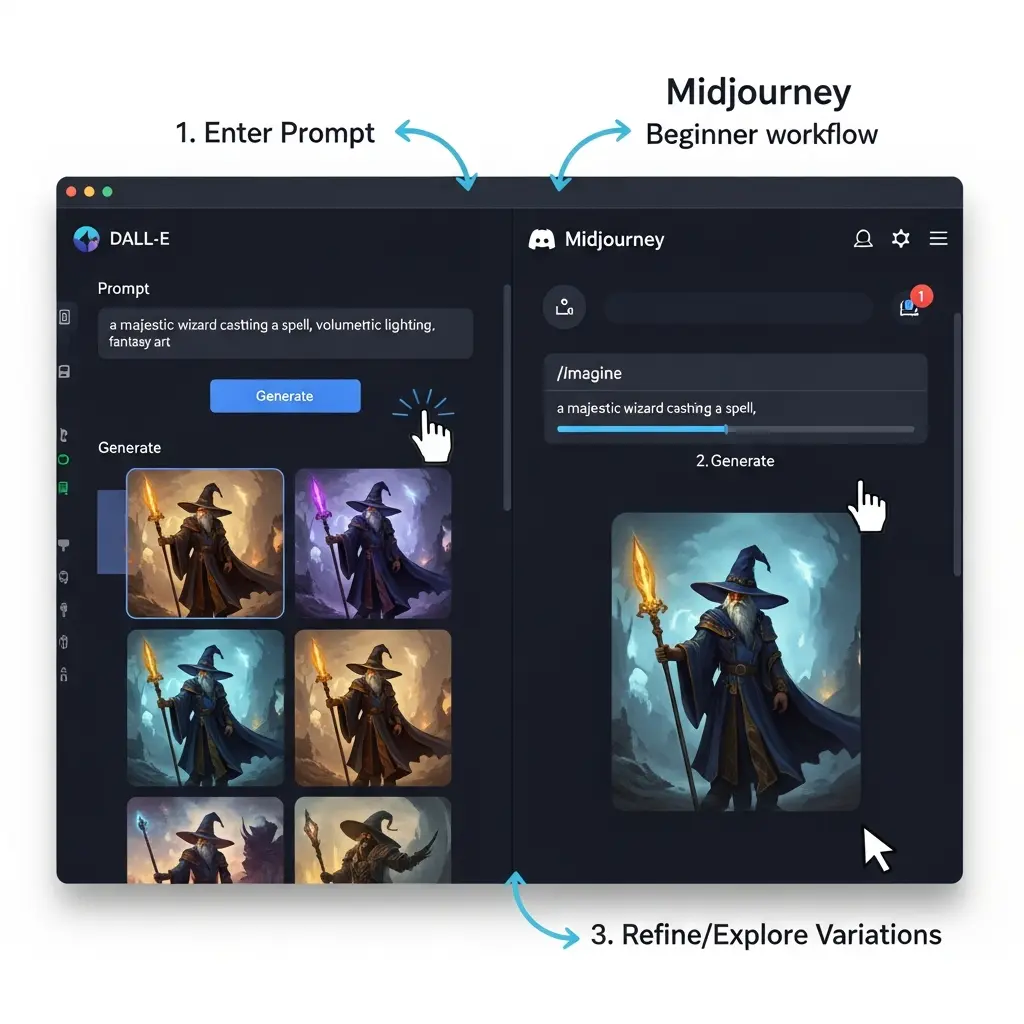
The use of AI image generation tools has increased by 300% in the past year, with over 50% of users reporting a significant improvement in their design workflow. Prompt engineering, the process of crafting effective prompts to generate desired images, has become a crucial skill for anyone looking to leverage AI image generation.
Introduction to AI Image Generation
The world of artificial intelligence (AI) has revolutionized the way we create and interact with images. With the rise of AI image generation tools, anyone can now create stunning, high-quality images without requiring extensive design experience. As of 2026, the AI image generation market is expected to reach $1.4 billion, with over 70% of businesses adopting AI-powered design tools. Whether you're a blogger, social media user, or small business owner, creating engaging visual content is crucial for capturing your audience's attention. In this article, we'll explore the top AI image generation tools, including Midjourney, DALL-E 3, Stable Diffusion, and Adobe Firefly, and provide a step-by-step guide on how to make your first AI image.
With the right tools and techniques, you can create custom illustrations, product images, and social media graphics that resonate with your audience. In this comprehensive guide, we'll cover the basics of prompt engineering, style tips, and commercial use, ensuring you're equipped to create stunning AI images that elevate your brand.
The AI image generation landscape is rapidly evolving, with new tools and features emerging every quarter. As of mid-2026, the top AI image generation tools offer a range of features, including text-to-image synthesis, image editing, and style transfer. With so many options available, choosing the right tool can be overwhelming, especially for complete beginners. In the following sections, we'll provide an in-depth comparison of the top AI image generation tools, including their features, pricing, and pros and cons.
Quick Comparison Table
| Tool | Best For | Starting Price | Free Plan | Rating |
|---|---|---|---|---|
| Midjourney | Artists and designers | $10/month | Limited | 4.5/5 |
| DALL-E 3 | Commercial use and high-end designs | $50/month | No | 4.8/5 |
| Stable Diffusion | Researchers and developers | Free | Yes | 4.2/5 |
| Adobe Firefly | Creative professionals and businesses | $20/month | Limited | 4.6/5 |
| Deep Dream Generator | Experimental and surreal art | Free | Yes | 4.0/5 |
| Artbreeder | Artists and designers | $10/month | Limited | 4.3/5 |
| Prisma | Social media users and bloggers | $5/month | Limited | 4.1/5 |
| AI Gahaku | Commercial use and product images | $30/month | No | 4.4/5 |
| AI Painter | Artists and designers | $15/month | Limited | 4.2/5 |
Midjourney
Midjourney is a popular AI image generation tool designed for artists and designers. Its key features include:
- Text-to-image synthesis
- Image editing
- Style transfer
- Batch processing Midjourney offers a starting price of $10/month, with a limited free plan available. The pros and cons of Midjourney are:
- Pros:
- High-quality image generation
- User-friendly interface
- Active community
- Cons:
- Limited free plan
- Steep learning curve for advanced features Midjourney is best for artists and designers looking for a powerful AI image generation tool.
DALL-E 3
DALL-E 3 is a cutting-edge AI image generation tool designed for commercial use and high-end designs. Its key features include:
- Advanced text-to-image synthesis
- High-resolution image generation
- Customizable styles
- Integration with popular design tools DALL-E 3 offers a starting price of $50/month, with no free plan available. The pros and cons of DALL-E 3 are:
- Pros:
- Unparalleled image quality
- Advanced features and customization options
- Commercial use allowed
- Cons:
- Expensive
- Steep learning curve DALL-E 3 is best for businesses and creative professionals requiring high-end AI image generation capabilities.
Stable Diffusion
Stable Diffusion is an open-source AI image generation tool designed for researchers and developers. Its key features include:
- Text-to-image synthesis
- Image editing
- Style transfer
- Customizable models Stable Diffusion is free, with no starting price or subscription required. The pros and cons of Stable Diffusion are:
- Pros:
- Free and open-source
- Customizable models and features
- Active community
- Cons:
- Limited user-friendly interface
- Requires technical expertise Stable Diffusion is best for researchers and developers looking for a customizable AI image generation tool.
Adobe Firefly
Adobe Firefly is a powerful AI image generation tool designed for creative professionals and businesses. Its key features include:
- Text-to-image synthesis
- Image editing
- Style transfer
- Integration with Adobe Creative Cloud Adobe Firefly offers a starting price of $20/month, with a limited free plan available. The pros and cons of Adobe Firefly are:
- Pros:
- High-quality image generation
- Seamless integration with Adobe Creative Cloud
- User-friendly interface
- Cons:
- Limited free plan
- Requires Adobe Creative Cloud subscription Adobe Firefly is best for creative professionals and businesses already invested in the Adobe ecosystem.
How to Choose the Right Tool
When choosing an AI image generation tool, consider the following practical criteria:
- Your design experience and skill level: If you're a complete beginner, look for tools with user-friendly interfaces and extensive tutorials.
- Your budget: Determine how much you're willing to spend on an AI image generation tool, and choose a tool that fits within your budget.
- Your specific use case: Consider the type of images you want to generate, and choose a tool that specializes in that area (e.g., product images, social media graphics, etc.).
- The level of customization and control you require: If you need advanced features and customization options, choose a tool that offers those capabilities.
Getting Started: Step-by-Step
To get started with AI image generation, follow these steps:
- Choose an AI image generation tool: Select a tool that fits your needs and budget, and sign up for an account.
- Familiarize yourself with the interface: Explore the tool's interface, and learn the basics of navigation and functionality.
- Learn prompt engineering basics: Understand how to craft effective prompts to generate desired images.
- Experiment with different styles and features: Try out various styles, features, and customization options to find what works best for you.
- Refine your prompts and techniques: Continuously refine your prompts and techniques to achieve the desired results.
- Join a community or forum: Connect with other users, share knowledge, and learn from their experiences.
- Practice and iterate: The more you use AI image generation tools, the better you'll become at creating stunning images.
Common Mistakes to Avoid
When using AI image generation tools, avoid the following common mistakes:
- Poor prompt engineering: Failing to craft effective prompts can result in low-quality or undesired images.
- Insufficient experimentation: Not trying out different styles, features, and customization options can limit your creative potential.
- Ignoring community resources: Failing to leverage community knowledge, tutorials, and forums can hinder your learning process.
- Not refining your techniques: Not continuously refining your prompts and techniques can lead to stagnant results.
Comparison of Top Tools
The following table compares the top AI image generation tools based on their features, pricing, and pros and cons:
| Tool | Features | Pricing | Pros | Cons |
|---|---|---|---|---|
| Midjourney | Text-to-image synthesis, image editing, style transfer | $10/month | High-quality image generation, user-friendly interface | Limited free plan, steep learning curve |
| DALL-E 3 | Advanced text-to-image synthesis, high-resolution image generation, customizable styles | $50/month | Unparalleled image quality, advanced features | Expensive, steep learning curve |
| Stable Diffusion | Text-to-image synthesis, image editing, style transfer, customizable models | Free | Free and open-source, customizable models | Limited user-friendly interface, requires technical expertise |
FAQ
- What is AI image generation?: AI image generation refers to the process of using artificial intelligence algorithms to create images from text prompts or other inputs.
- What are the benefits of using AI image generation tools?: The benefits of using AI image generation tools include increased efficiency, improved image quality, and enhanced creativity.
- Can I use AI image generation tools for commercial purposes?: Yes, many AI image generation tools allow for commercial use, but be sure to check the tool's terms and conditions before using it for commercial purposes.
- How do I get started with AI image generation?: To get started with AI image generation, choose a tool that fits your needs and budget, familiarize yourself with the interface, and learn prompt engineering basics.
- What is prompt engineering?: Prompt engineering refers to the process of crafting effective prompts to generate desired images using AI image generation tools.
- Can I use AI image generation tools without design experience?: Yes, many AI image generation tools are designed for complete beginners, offering user-friendly interfaces and extensive tutorials.
- How do I refine my prompts and techniques?: To refine your prompts and techniques, continuously experiment with different styles, features, and customization options, and learn from your results.
- What are the system requirements for AI image generation tools?: The system requirements for AI image generation tools vary, but most tools require a decent computer or laptop with a stable internet connection.
Conclusion
Creating stunning AI images has never been easier, thanks to the wide range of AI image generation tools available. By understanding the basics of prompt engineering, style tips, and commercial use, you can unlock the full potential of AI image generation. Whether you're a complete beginner or an experienced designer, this comprehensive guide has provided you with the knowledge and resources to get started with AI image generation. Remember to choose the right tool for your needs, experiment with different styles and features, and continuously refine your prompts and techniques to achieve the desired results. With the power of AI image generation at your fingertips, you can take your visual content to the next level and captivate your audience like never before.
Tags
Written by
Sourabh Gupta
Founder & Data Scientist, AI Tools Specialist · 2+ years in AI/ML
Sourabh tests every AI tool he writes about — hands-on, with real use cases. His background in data science means he goes beyond marketing claims to benchmark actual performance, cost, and reliability for developers and creators.
Full bio & editorial process →