Krea AI Guide: Real-Time Ideation to Video Workflow
Editorial note: Some links in this article are affiliate links — we may earn a commission if you sign up, at no extra cost to you. Research guides are distinguished from documented firsthand reviews in our editorial standards. Read our editorial standards →
Krea AI Guide: Real-Time Ideation to Video Workflow
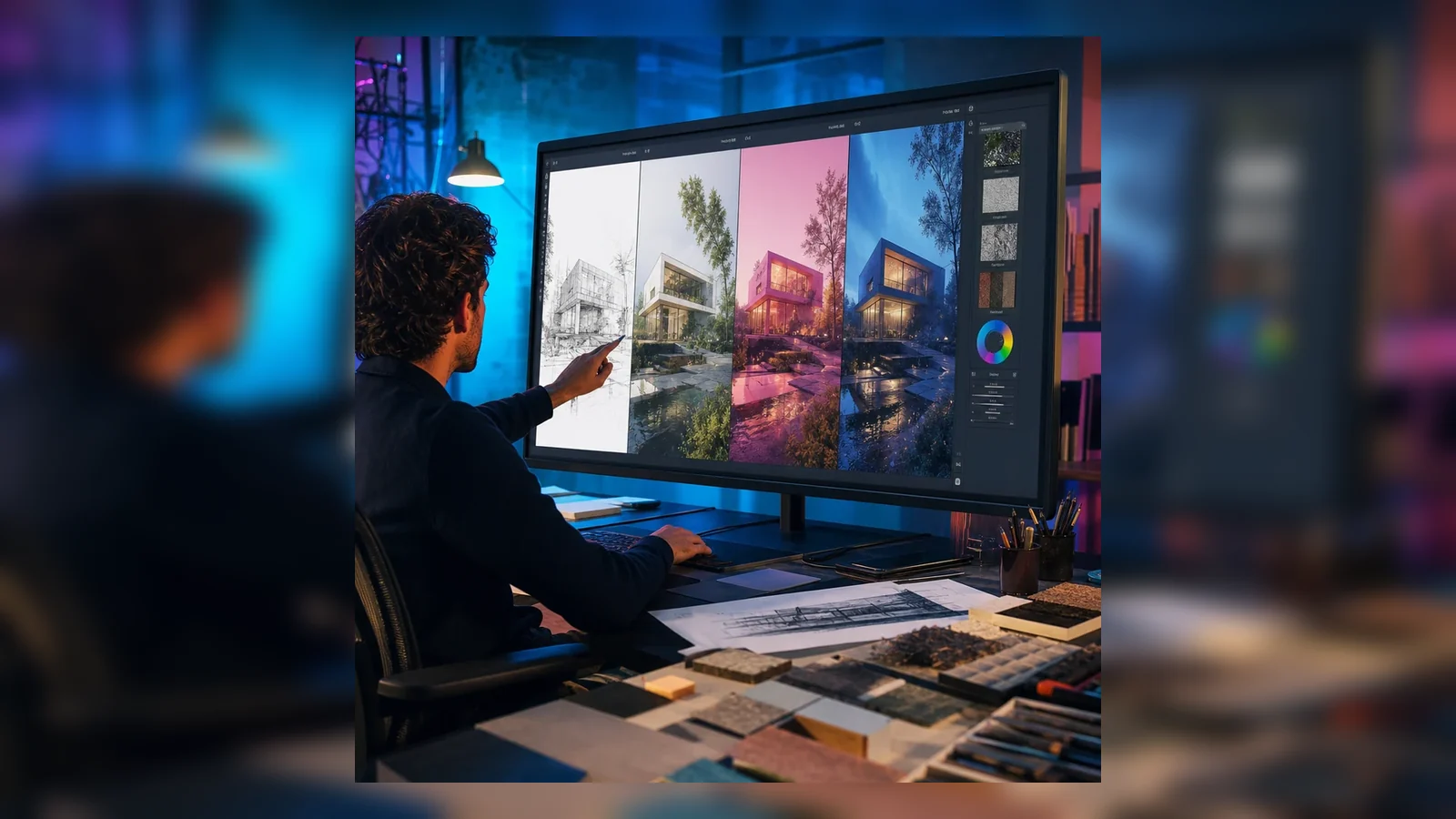
Krea is most interesting when speed changes the creative conversation. Its real-time image surface can make a rough sketch, composition, or prompt react immediately; its broader suite includes image generation, editing and enhancement, video generation, and a node-based workflow builder. That combination is good for exploring art direction before a team spends hours on a polished frame.
It is not proof that the first attractive frame is production-ready. Real-time tools reward rapid variation, which can lead to shallow selection, accidental reference copying, inconsistent assets, and expensive video retries. Use Krea to make decisions earlier, then move selected assets through a controlled image and video pipeline.
What Krea is suited to
Krea’s official user guide describes an AI creative suite for generating and editing images and video, experimenting in real time, training styles, and using multiple models. Its video documentation describes text-to-video, image-to-video, and video extension, while warning that generated clips are short and materially more compute-intensive than images. Its Nodes documentation describes chaining image, enhancement, editing, video, and audio models on a visual canvas.
That suggests three distinct jobs:
- Ideation: explore composition, mood, material, and camera language with real-time feedback.
- Asset preparation: choose a still, correct defects, upscale or edit it, and create consistent variants.
- Motion testing: animate a chosen still or prompt into a short shot, then assemble approved clips elsewhere.
Trying to do all three in one prompt makes it hard to learn why a result failed.
Begin with a visual brief, not a model menu
Write five lines before opening Krea: audience and placement; subject; visual constraints; must-have elements; and things to avoid. Include aspect ratio and output requirement. For a landing page hero, the brief might be “wide 16:9; one product on a warm stone plinth; room for left-aligned headline; soft directional light; no text, logos, hands, or recognizable brands.”
Add a reference board you have permission to use, but describe properties rather than asking for a living artist’s exact style. “Fine ink contours, limited indigo and cream palette, generous negative space” is more defensible and more controllable than a name-based imitation request.
A real-time image workflow
1. Block composition before detail
Use the real-time surface to establish silhouette, camera angle, subject placement, and negative space. Rough drawing or image guidance is particularly useful here because it communicates layout more precisely than prose. Generate broadly and save only candidates that satisfy the brief. Do not spend time repairing fingers, typography, or texture before the composition is approved.
2. Create a contact sheet and select deliberately
Export or capture a small set of variations with their prompts, model settings, and seed/settings where available. Review them side by side at the final placement size. Ask: does it direct attention correctly? Is there usable crop room? Does it communicate the intended category without relying on text? Is it distinct enough from the supplied reference?
Selection is the creative skill that generative tools do not automate. Keep a rejection reason beside each candidate; it improves the next prompt more than random rerolling.
3. Lock an image, then edit locally
Once composition is approved, use image editing or enhancement for specific repairs. Check the full-resolution result, not just a preview: small text, product geometry, patterns, edges, and skin can degrade under upscaling. Compare before and after at 100%. If an asset will be printed, test a proof; pixel dimensions alone do not guarantee acceptable print detail.
4. Record provenance
For deliverables, retain the prompt, source images, model/tool setting, account plan, creation date, edited master, and approvals. This helps reproduce a look, answer a client question, and investigate an accidental third-party element. It is also a better practice than treating a generated JPEG as a self-explanatory source file.
From still to short video
Krea documents three video routes: text-to-video, image-to-video, and extension. Its guide notes that AI video is generally short—roughly 5–12 seconds per clip—takes longer than images, and uses substantially more credits. Plan a sequence as shots, not as a request for a finished commercial.
Choose the right route
Use text-to-video when motion and scene are both exploratory. Use image-to-video when composition and identity must remain anchored to an approved still. Use extension when a usable clip needs more duration, while checking continuity at the join. Each route has different failure modes; image-to-video usually gives a better art-direction starting point, but it can still change details.
Write a motion brief
Separate the still description from movement: “Camera makes a slow 10% push-in; fabric moves in a light breeze; subject remains still; no cuts; no new objects; 6 seconds.” This is clearer than adding “cinematic” repeatedly. Generate a small number of alternatives, then score motion, temporal consistency, unwanted morphing, framing, and ending.
Finish outside the generator
Trim clips, stabilize pacing, add licensed sound, captions, graphics, and color correction in a conventional editor. Keep a shot list with clip IDs and use a human review for continuity. Generated video should not be the only source of timing or brand-quality control.
Build repeatable work with Nodes
Krea Nodes can chain models and operations into a visual pipeline. This is valuable when a team repeatedly transforms inputs through the same stages—for example: upload product still → background removal → controlled background generation → enhancement → export candidates.
Make each node graph small and name it by business purpose. Put a human approval point before costly video generation or publishing. Test with representative difficult inputs, not only an ideal sample. Record model versions and inputs because changing a node or hosted model can alter results.
Avoid a sprawling graph that mixes ideation, final rendering, and delivery. A node workflow should make a repeated process more inspectable, not turn it into a mysterious factory.
Cost, rights, and safety checks
Check Krea’s current plans and terms directly before planning volume work; credit costs and available models change. Krea’s video guide specifically notes that video takes more time and credits than images. Budget a fixed exploration allowance and a smaller final-render allowance. Stop generating when additional variations are not changing a decision.
Read the current terms for permitted commercial use, uploaded material, and output rights for the plan you use. Do not upload confidential client imagery or personal data unless the relevant agreement and platform controls permit it. Do not assume an output is exclusive, that it is free of third-party similarity concerns, or that a platform will accept it without disclosure. For major campaign, packaging, or regulated use, use a rights review and retain the provenance record.
Practical limitations
Real-time feedback can favor surface novelty
Immediate images are excellent for divergent thinking, but can create a false sense of control. Require a written selection criterion and a final asset review.
Model availability can change
Krea offers access to multiple models; their behavior, policies, and availability can change. Save approved masters and avoid promising a client that an exact look can always be regenerated.
Video remains a shot tool
Short generated clips are not a replacement for a production pipeline requiring exact continuity, actor performance, long dialogue, or frame-accurate product claims. Use it for concepts, transitions, background motion, and selected shots unless testing proves otherwise.
Generated detail needs human QA
Look for malformed text, inconsistent logos, altered product features, implausible hands, and flicker. Never use generated imagery as evidence of a product capability, safety claim, or real event.
A compact team review rubric
Give each candidate a score from one to five for composition, brief fit, brand fit, technical integrity, distinctiveness, and editability. Add a binary check for rights concerns: unlicensed input, recognizable person, trademark, or misleading product depiction. A frame that scores highly on atmosphere but fails product accuracy should return to ideation, not move to animation.
This rubric counters a predictable real-time-generation bias: the latest image often feels better because it is novel. Review a contact sheet in random order, at the size it will be used, and keep only a few candidates. The saved time is substantial because every still sent to video, enhancement, or a client approval round multiplies compute and review work.
Handoff package for a selected image
Deliver a folder containing the approved master, a web derivative, source/reference permissions, prompt and settings, creation date, edit notes, and a short statement of intended use. For video, include the starting still, motion brief, clip IDs, edit decision list, and licensed audio record. This is mundane production hygiene, but it lets another designer reproduce decisions without guessing which of dozens of nearly identical generations was approved.
For client work, make approval unambiguous: identify the exact filename and version, the crop and placement approved, and any restriction on reuse. A casual “looks good” in a chat thread is easy to misapply after more generations are made. The record should also say whether later retouching, localization, or animation needs a new review. These controls are as useful for human-created assets as generated ones, but rapid generation makes them more important because the number of plausible alternatives grows quickly. Finally, archive rejected material separately from approved masters. It preserves exploration history without letting an unreviewed frame leak into a presentation or production export. Use clear filenames, access controls, and retention dates for both collections.
Designing for revisions instead of one-off renders
Visual work rarely ends at first approval. A campaign may need a new crop, a regional version, a different product color, or a mobile-safe composition. Anticipate that by keeping the approved layout specification alongside the generated master: aspect ratio, subject position, protected text area, palette, intended model or settings, and any elements that must not change. It is more useful than a long prompt because it states what a reviewer can verify.
When a revision arrives, begin from the approved still or a controlled source asset rather than recreating the entire scene from memory. Change one requirement at a time and compare the new result against the original at final size. This limits “revision drift,” where a simple crop request accidentally changes the product shape, background, or visual identity. If the revision is substantial, return to the contact-sheet stage and obtain fresh approval rather than presenting a transformed asset as a minor edit.
For a team, define who may generate exploratory material, who may approve a final visual, and who may release it. Krea can make production feel instant, but approval authority should remain as clear as it is in a conventional studio. That clarity protects designers as well as clients: it distinguishes an experimental concept from a promised deliverable and makes quality review possible under deadline pressure.
Test the actual destination
Export a candidate into the channel where it will live before final sign-off. A social crop may remove the intended negative space; a content-management system may recompress a delicate gradient; a presentation display may reveal artifacts invisible on a laptop. For video, test the final codec and autoplay context. Note these findings in the handoff package, then make a new approved derivative rather than silently replacing the master. This closes the gap between an attractive canvas preview and the asset users actually encounter.
FAQ
Is Krea best for final assets or ideation?
It is especially strong for rapid ideation. Final assets need the same technical, rights, and brand review as any other creative source.
How long can Krea video clips be?
Krea’s current video guide describes short clips, generally 5–12 seconds, with extension available for building longer scenes. Check the current documentation for model-specific limits.
Why use Nodes?
They make a repeated multi-step pipeline visible and reusable. Use them after a manual workflow is proven, not before.
Can I use any reference image?
No. Use material you have permission to use and avoid asking for exact imitation of identifiable artists, brands, or people.
The bottom line
Krea earns its place early in a visual pipeline: it makes composition and motion ideas cheap enough to compare. The disciplined workflow is brief, explore, select, prepare, animate, edit, and document—not endlessly generate. Real-time feedback is most valuable when a human uses it to make sharper creative decisions.
Sources
Tags
Written by

Sourabh Gupta
Author at Teach AI Tools
Sourabh Gupta is responsible for Teach AI Tools. Research guides and documented firsthand reviews are identified separately. An author profile is not evidence of testing; look for sources, test records, and limitations in the article.
Full bio & editorial process →