
AI Photo Restoration Tools 2026: Prices, Privacy and Practical Checks
Fact-checked and updated
Editorial note: Some links in this article are affiliate links — we may earn a commission if you sign up, at no extra cost to you. Research guides are distinguished from documented firsthand reviews in our editorial standards. Read our editorial standards →
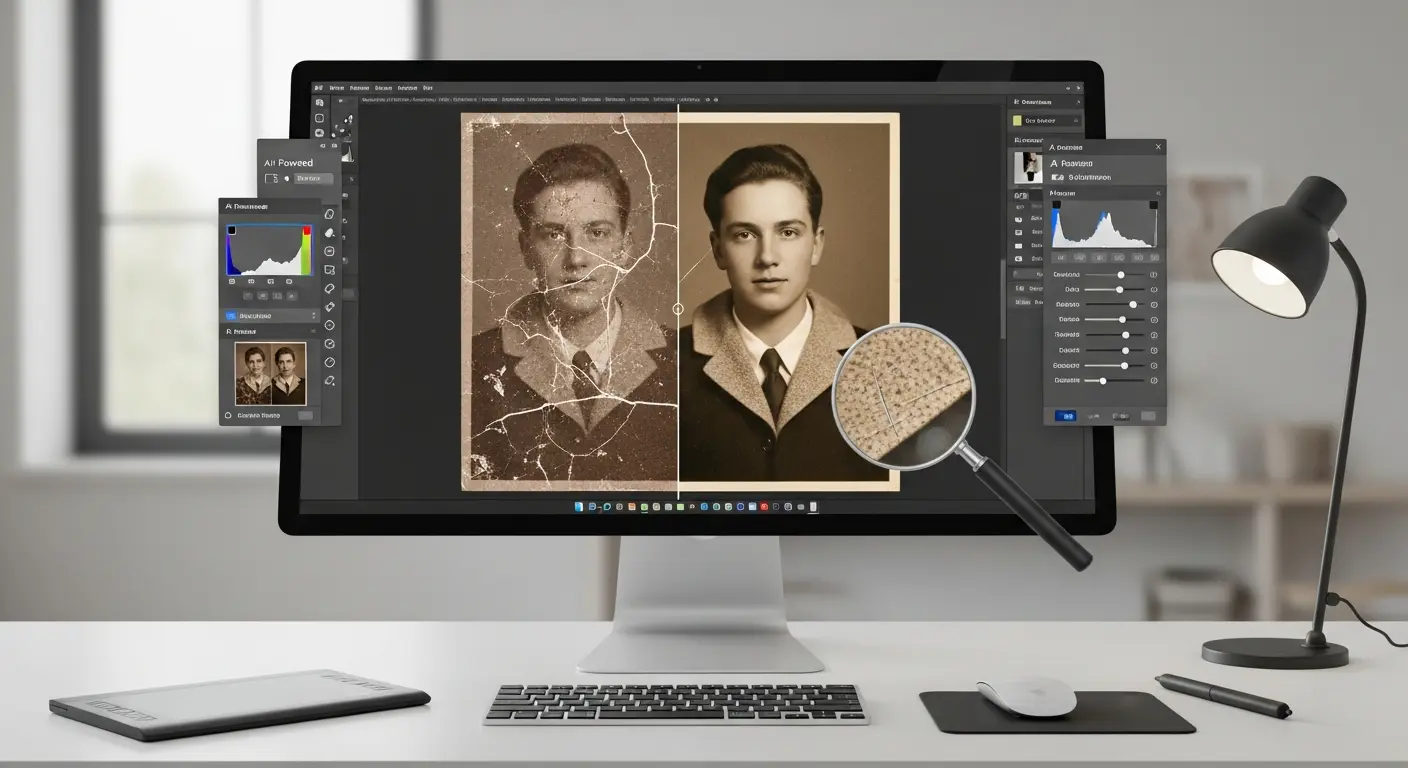
Illustrative cover image; not a before/after result produced in this review.
AI photo restoration can reduce the appearance of fading, scratches and blur in a digital scan. It can also change a face or invent a missing detail. Choose a tool by the job you need—digitizing an album, repairing damage, colorizing or preparing a print—and keep the untouched scan as your reference.
Quick picks by task
- Try a limited free allowance: VanceAI advertises 10 trial credits. Check the cost of the intended export before processing; this is not unlimited free restoration.
- Family-history organization: MyHeritage combines enhancement, repair and color tools with family albums.
- Digitize albums first: Photomyne is primarily a scanning and organization app.
- Manual repair and control: Photoshop provides layers, masks and retouching alongside Neural Filters.
- Sharpening and enlargement: Topaz Photo is worth evaluating for print preparation; inspect a crop before committing to a large print.
These are workflow matches based on documented features, not measured winners. No common-image comparison or firsthand before/after test was run for this guide.
What AI restoration can and cannot recover
Damage repair reduces visible marks; colorization proposes colors; enhancement changes sharpness, noise or size. Those are different operations. An enlarged image may look cleaner without containing more historically reliable information.
Light fading and small scratches are reasonable starting points. Large tears, missing eyes or faces, and severe blur leave too little evidence for reliable reconstruction. A plausible replacement is an interpretation. Even MyHeritage’s own enhancement documentation warns that inferred faces can be inaccurate or distorted. No meaningful universal “percentage of damage repaired” or “color accuracy” score is established here.
Tool comparison: prices and limits checked October 31, 2026
Dollar amounts below are USD on the linked vendor pages, before any additional local taxes. Offers, regions, app stores and renewal terms can differ. “Check checkout” means a fixed current amount was not verified; it does not mean free. Repair, colorization and enlargement may require separate tools or credits.
| Tool / platform | Repair and color | Enlargement | Price and free-use limits | Main limitation |
|---|---|---|---|---|
| Remini / iOS, Android | Face enhancement; check the specific repair tools offered | Enhancement; export limits depend on offer | Variable in-app pricing; trial not always offered | Face-focused output can change identity; verify your own subscription offer. |
| MyHeritage / web, mobile | Photo Repair and In Color are separate functions | Photo Enhancer | Photo subscription / plan details; check current checkout price and free allowance | Complete includes photo features but not Photo Scanner; Photo and Omni include scanning. |
| Photomyne / iOS, Android; web access | Scan enhancement; generative tools cost extra | Not the main reason to choose it | $19.99/month or $59.99/year; free scanning/core enhancements with ads | Membership does not include generative AI credits; see digitizing section. |
| VanceAI / web; separate Windows local app | Restorer and Colorizer are separate tools | Separate upscaler | Starter: $180/year ($15/month equivalent); page advertises 10 trial credits | Restorer lists 4 credits at 1K/2K and 10 at 4K; other steps consume more. |
| Hotpot / web | Restorer offers black-and-white and color finishes | Separate Photo Upscaler | Credits required for every result; amount shown in editor | Current page does not promise a free first restoration; group photos may work poorly. |
| Photoshop / Windows, macOS desktop | Manual repair; Colorize featured, Photo Restoration beta | Super Zoom and other size controls | Photography: $19.99/month, annual billed monthly; includes Photoshop, Lightroom and 1TB | Annual commitment; desktop filter availability differs from mobile/web. |
| Topaz Photo / Windows, macOS | Enhancement and face recovery; not a substitute for manual tear repair | Sharpening, denoising and enlargement | $39/month on monthly billing; subscription, not a $199 perpetual licence | Local and cloud models differ; check hardware, commercial-use eligibility and export terms. |
How to choose among the restoration tools
Remini: a mobile face-enhancement candidate
Try it when the main problem is a soft or small portrait. Review eyes, teeth, hairline and facial proportions against the scan. Do not assume sharpening proves what the person looked like. Remini’s pricing help explicitly says offers vary; confirm the duration, included tools and renewal total in your own paywall. A free trial may be unavailable or exclude features.
MyHeritage: family albums and separate photo functions
Use the right operation: Photo Enhancer for low-quality faces, Photo Repair for visible damage, and In Color for colorization or faded colors. Its current subscription documentation distinguishes Photo, Complete and Omni, including the Scanner exception shown above. We could not verify a single public price that applies to every reader. Check both the initial offer and renewal.
VanceAI: credit-based repair in a browser
Its current pricing table advertises 260 monthly Starter credits, including a 30% bonus, on annual billing. Budget the whole workflow: a repair, colorization and upscale can consume separate credits. The same page’s generic FAQ still says 1–3 credits per image, conflicting with the detailed Restorer row; confirm the workspace’s estimate before paying. The local Windows product is a separate purchase. Skip a yearly cloud plan if you only need a few scans.
Hotpot: check the current editor, not older free-tool lists
The current Restorer page requires credits for the first result and subsequent edits. It offers instructions and style choices, but says it can invent details and may struggle with more than two people. Inspect every face in a group shot. Upscaling is separate. Neither an older free listing nor a generic volume price establishes the cost of your current editing session.
Photoshop: control over what changes
Photoshop is useful when a scratch crosses a face or you need to repair one area while protecting the rest. Work on layers, mask automated changes and retain a layered master. Adobe’s desktop Neural Filters gallery lists Colorize as featured and Photo Restoration as beta; these are not the same filter. Download availability and results depend on the installed version and supported system. The Photography subscription includes desktop Photoshop; the full Creative Cloud bundle is unnecessary for these filters. Check annual cancellation terms before subscribing.
Topaz Photo: evaluate enhancement after repairing damage
The current product is Topaz Photo; older Photo AI licences have different terms. Its pricing page lists monthly and annual options and local/cloud processing. Use it to assess sharpening, denoising and enlargement after fixing visible damage. Strong enhancement can make skin look synthetic or invent texture. Compare a print-size crop, not just a small screen preview. The standard licence has commercial-use revenue limits; larger organizations need the applicable Pro terms.
Digitize first: Photomyne and a scanning checklist
Photomyne belongs at the capture stage. Its published plans include monthly, annual and three-year access ($119.99 for three years, not lifetime). The annual plan lists a three-day trial; the monthly plan does not. Generative AI credits are separate from membership. Export your scans and keep an independent backup.
- Record context. Capture the album page, handwritten backs, names and dates before cropping individual pictures.
- Handle the object carefully. Touch edges rather than the image surface. Do not apply household cleaners or attempt to flatten brittle prints. Follow Library of Congress handling guidance.
- Do not peel stuck photographs out of albums. The National Archives advises against separating adhered photographs. Capture the page in place or ask a photograph conservator.
- Choose the clearest source. A clean original negative may preserve more detail than a damaged print; use a suitable film scanner or scanning service. A reflective flatbed cannot scan a negative correctly without the appropriate transparency setup.
- Match resolution to the print goal. As a practical starting point, a 4 × 6-inch print scanned at a true optical 600 ppi gives 2400 × 3600 pixels—enough dimensions for 8 × 12 inches at 300 ppi. This arithmetic does not guarantee sharpness. Small originals or film may need a different capture setup.
- Keep a master. Scan in color to preserve tone information, retain a lossless TIFF or PNG, and make a separate JPEG for sharing. Avoid repeatedly saving a JPEG while editing.
A three-photo trial you can run before buying
This is an evaluation method, not a report of tests we performed. Choose three photos you have permission to process: one faded, one scratched and one with a tear. Give each candidate tool the same unedited scan. Keep automatic settings first, then allow one correction pass. Record version, settings, credits or subscription cost, processing time and your review/editing time.
| Sample | Try first | Check at full size | Reject or escalate when |
|---|---|---|---|
| Faded print | Tone correction; optional separate colorization | Skin tones, neutral areas, clipped shadows and highlights | Color is presented as fact without reference evidence. |
| Scratched portrait | Localized repair before face enhancement | Eye shape, teeth, jewellery, lettering and edges | A scratch is gone but the person’s identity has changed. |
| Torn group photo | Mask and repair a small area; use reference photos where available | Every face and the boundary between original and generated areas | Missing faces are fabricated or the reconstruction cannot be supported. |
Save before and after at the same crop and display size. Ask someone who knows the person to review the face. Accept a less dramatic result when it preserves identity better. Do not chain several face enhancers by default: later tools may amplify earlier inventions. No before/after images here are presented as our own product-test evidence.
Privacy: where family photos go
Storage, model training and public visibility are separate questions. Check the policy for the exact app or web service, not just the brand. A deletion request may leave temporary backups or legally retained records. We did not independently audit these providers’ storage or deletion systems.
| Service | What the documentation establishes | What to do before uploading |
|---|---|---|
| Remini | Mobile help says server retention is limited to providing features, except images shared with explicit consent to improve AI. The web policy has different retention rules, including 14 days for unauthenticated uploads. | Review training opt-ins and the applicable policy. Web accounts provide a privacy-request route; do not generalize one app’s deletion timing to all Remini products. |
| MyHeritage | Reimagine albums are private by default; existing family-site albums follow their own settings. Its privacy policy explains image processing and deletion assistance. | Check album visibility, sharing and Photo Tagger settings; delete unwanted uploads and request help if needed. A blanket no-training guarantee was not verified here. |
| Photomyne | Policy describes AWS storage in the US and Ireland, and backups that can remain for a few months after deletion. | Export first, delete unwanted material, and check biometric permissions. We did not verify an explicit blanket exclusion from model training. |
| VanceAI | Local Windows processing is offered separately from cloud processing. The general privacy policy does not establish a precise upload-deletion deadline or clear image-training exclusion in this review. | Ask for written retention/training details for cloud uploads, or verify that the selected local operation keeps files on the PC. |
| Hotpot | General policy covers service improvement and data-rights requests. The current Restorer page does not repeat the older transient-storage assurance. | Confirm upload retention, training use and deletion with support before sending sensitive family images; no fixed deletion period is verified here. |
| Adobe | Content-analysis FAQ says customer content is not analyzed to train generative AI unless submitted to Adobe Stock; other improvement programs and settings are separate. | Review content-analysis/Photoshop improvement choices and cloud saving. Local retouching does not imply every AI filter is offline. |
| Topaz | Local and cloud rendering are distinct choices. The privacy policy gives purpose-based retention rather than a universal image-deletion deadline. | Prefer a verified local model for sensitive scans. Ask about cloud retention/training; this review did not establish a blanket no-training guarantee. |
For photos of children, living relatives or deceased family members, discuss sensitive uses with the appropriate family members and rights holders. Crop out addresses, identity documents and unrelated people where possible. Avoid public demo galleries for private images. If you cannot establish acceptable handling terms, use a confirmed local workflow or a trusted professional with written confidentiality terms.
Ethics and accuracy: label interpretation
Keep the original scan and label derivatives “AI-enhanced” or “AI-colorized; colors inferred.” Record the tool, date, settings and manual edits. Do not silently replace an archival image with an enhanced face. Clothing, uniforms, eye color, skin tone, signs and building details can all be plausible but wrong. A restorer can make careful repairs; nobody can guarantee the true appearance of information absent from every surviving source.
For technical readers, GFPGAN and CodeFormer provide face-restoration code, while Real-ESRGAN focuses on restoration and upscaling. They can be run locally with suitable dependencies and hardware, but third-party hosted demos upload your images. Check model and dependency licences: CodeFormer uses the NTU S-Lab licence, so do not assume every available repository permits the same commercial uses.
Cost comparison: count your time and the exceptions
There is no verified universal professional rate, turnaround time or AI savings percentage in this guide. Ask a restorer to quote representative scans and define the repair, revision and output scope. Software cost alone understates an album project.
Hypothetical 100-photo project: assume 80 straightforward images, 10 difficult images sent to a professional and 10 left unchanged. Allow $20 for software/credits, 10 hours of your scanning, review and editing time valued at $20/hour ($200), and an assumed $150 professional quote. Total: $20 + $200 + $150 = $370, before equipment, tax, extra revisions or printing. The $150 is an illustration, not a market price or a promise that a professional will accept the work.
If your software requires a full annual payment, include that cash cost rather than one month’s equivalent. Measure time on the three-photo trial, then revise the estimate. We removed the speculative restoration-business revenue forecast: gross sales are not profit, and this guide does not establish demand, commercial licensing or billable capacity.
Frequently Asked Questions
Can AI restore a severely damaged photo?
It can reduce visible marks, but missing faces and large torn areas require invention unless another source supplies the detail. Describe the damage rather than assigning a percentage. Use a conservator for fragile physical originals and a skilled restorer for complex digital repairs.
Will it damage my original?
Processing a separate digital copy does not physically alter the print. However, editing software can overwrite a file, and AI can change a face enough to resemble another person. Keep an untouched scan and independent backup, and export the enhanced result under a new name.
Which tool is actually free?
VanceAI advertises a limited trial-credit allowance; Photomyne lists ad-supported scanning and core enhancements. Remini’s trial availability varies. Hotpot’s current restorer requires credits for every result. Check export limits and paid renewal terms before treating any option as free.
Are AI colors historically accurate?
Not automatically. Black-and-white pixels do not uniquely identify the original colors. Use surviving color photographs, records or known objects as references, keep a monochrome version, and label any inferred colorization.
Can I sell a restored image?
Check the original photographer’s copyright, permissions, applicable privacy rights and the software/model’s commercial terms. Owning a print does not automatically establish all reproduction rights. Enhancement does not resolve those questions.
Can restoration fix a corrupted image file?
Most tools need a readable image. Recover the file or make another scan first. Image enhancement and file recovery solve different problems.
A practical next step
Make three good scans, keep the masters, and compare tools on the defects you actually have. Buy only after checking the exported result, total cost and data handling. Keep damaged areas visible when an automated replacement would misrepresent the person or event.
Related guides: photo-editing workflows and photo-editing apps. For scanning and handling fragile originals, use the institutional references above. This article does not claim to supply a hands-on benchmark or original before/after gallery.
Tags
Written by

Sourabh Gupta
Author at Teach AI Tools
Sourabh Gupta is responsible for Teach AI Tools. Research guides and documented firsthand reviews are identified separately. An author profile is not evidence of testing; look for sources, test records, and limitations in the article.
Full bio & editorial process →