AI Photo Editing Tools 2026: Features and Practical Workflows
Updated · Detailed guide restored with targeted factual corrections
Editorial note: Some links in this article are affiliate links — we may earn a commission if you sign up, at no extra cost to you. Research guides are distinguished from documented firsthand reviews in our editorial standards. Read our editorial standards →
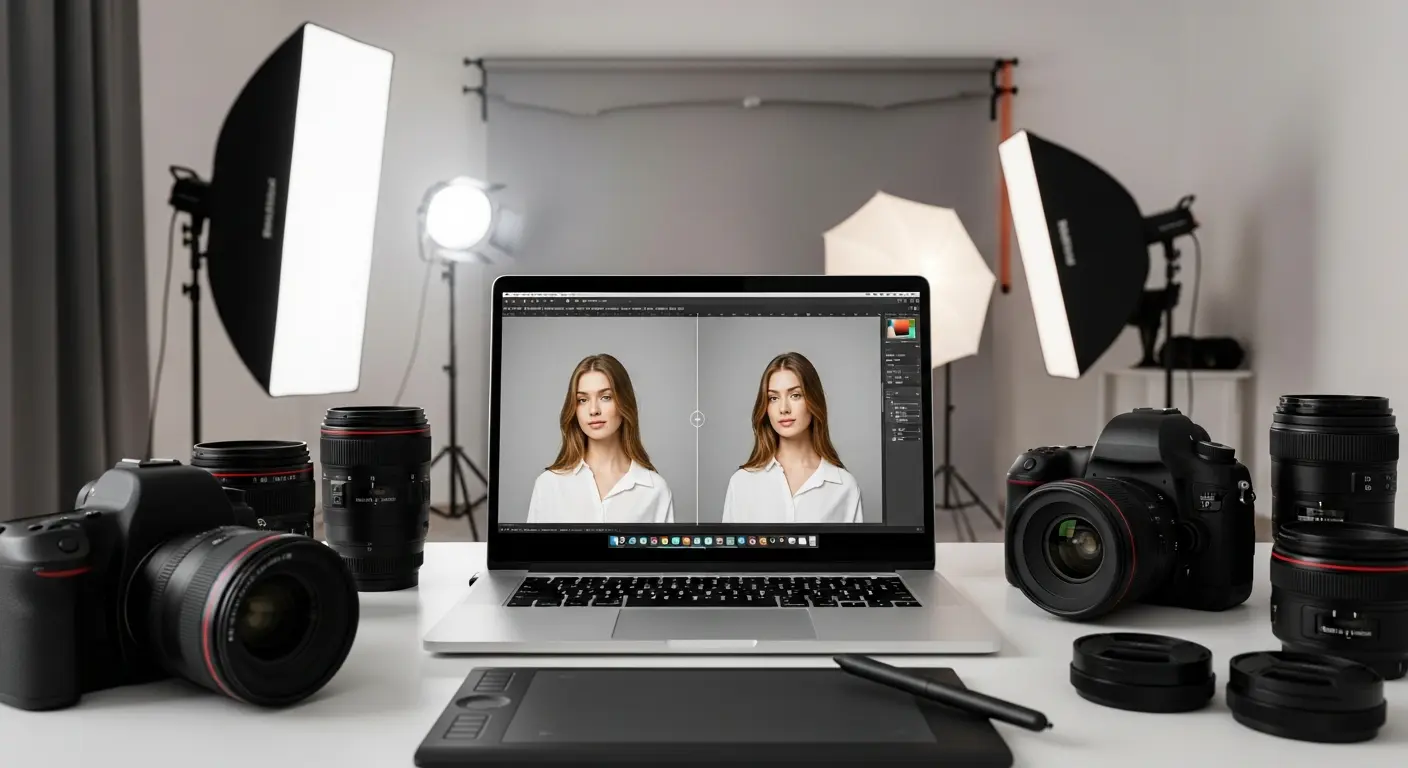
AI-assisted photo tools can help with selections, cleanup, denoising and generated edits. Choose by the actual task and inspect the result at delivery size; a fast preview is not proof of professional quality.
Introduction
The older ten-to-fifteen-hour weekly saving had no supplied editing record. Compare the same source files and final quality when measuring a workflow.
This comprehensive guide explores the best AI photo editing tools in 2026, helping you choose the perfect solution for your photography needs.
Quick Comparison
| Tool | Workflow to evaluate | Plan or output check |
|---|---|---|
| Photoshop | Selections, compositing and generative edits | Actual app licence, model and credit allowance |
| Luminar Neo | Photographer-oriented adjustment workflow | Current licence, platform and included extensions |
| Topaz Photo / legacy Photo AI | Denoising, sharpening and upscaling | Current product and subscription versus an older licence |
| remove.bg | Subject cutouts | Resolution, credits, API and edge quality |
| Canva | Photo edits in a design workflow | Feature entitlement, export and template rights |
Top AI Photo Editing Tools
1. Adobe Photoshop with AI (Generative Fill)
Pricing: the earlier fixed amount is not a reverified current quote. Confirm the actual plan, billing period, usage and feature access with Photoshop.
Industry-standard photo editor now enhanced with powerful AI features including Generative Fill, Neural Filters, and intelligent selection tools.
Consider for: a controlled editing and compositing workflow. Check the Generative Fill model, source rights and final detail rather than assuming eight-to-twelve hours saved each week.
Capabilities to verify in the current plan:
- Generative Fill (add/remove objects naturally)
- Neural Filters (style transfer, age modification)
- Sky Replacement (one-click realistic skies)
- AI-powered selection tools
- Content-Aware Fill
- Automatic colorization
- Face-aware liquify
Evaluate masks, layers, color handling and manual control on the edit you actually need. “Unmatched” performance is not established by this guide.
2. Luminar Neo
Pricing: the earlier fixed amount is not a reverified current quote. Confirm the actual plan, billing period, usage and feature access with Luminar Neo.
User-friendly AI photo editor specifically designed for photographers who want professional results without Photoshop's complexity.
Consider for: portrait or landscape adjustment with a workflow your editor can review. Test the actual controls and export instead of assuming the most intuitive interface or a fixed time saving.
Capabilities to verify in the current plan:
- AI Sky Replacement
- Portrait Bokeh AI (realistic depth)
- AI Skin Enhancement
- AI Structure (detail enhancement)
- AI Atmosphere (depth and mood)
- Remove Power Lines
- Dust removal
- Relight AI
Confirm current standalone or plugin compatibility with the installed app, operating system and licence.
3. Topaz Photo — Distinguish the Legacy Photo AI Product
Product and pricing correction: the older $199 one-time Photo AI quote is not a current quote for Topaz Photo. Confirm the current subscription, local or cloud operation and what an existing legacy licence actually includes.
Topaz Photo focuses on image enhancement such as denoising, sharpening and upscaling. A generated detail can look plausible without being a faithful recovery of information in the original.
Consider for: evaluating noisy or soft images and a proposed print export. Compare the original at actual viewing size and do not describe it as the best upscaler without a comparative test.
Capabilities to verify in the current plan:
- Actual upscaling limits and export requirements
- Sharpening and denoising artifacts
- Generated facial details and identity fidelity
- The supported version and batch workflow
- Manual settings and a comparison with the original
For historical or documentary material, distinguish visual enhancement from verified recovery. An invented face detail should not be presented as historical evidence.
4. Remove.bg
Pricing: the earlier fixed amount is not a reverified current quote. Confirm the actual plan, billing period, usage and feature access with remove.bg.
remove.bg is an option for subject cutouts and background removal. Validate hair, transparent material, product edges and shadows on your own images.
Consider for: product or portrait cutouts. Measure review and correction time on the actual edge cases; no most-accurate ranking is established here.
Capabilities to verify in the current plan:
- The input and download resolutions
- Credits and actual bulk or API allowance
- Edge detail, transparency and shadows
- Current app or integration compatibility
Evaluate a full catalog sample, including difficult edges, rather than extrapolating hundreds of hours saved from a single easy cutout.
5. Canva Photo Editor
Pricing: the earlier fixed amount is not a reverified current quote. Confirm the actual plan, billing period, usage and feature access with Canva.
Accessible online photo editor with AI-powered features perfect for quick enhancements and social media content.
Consider for: photo edits used in social or marketing designs. Confirm the actual Canva entitlement and exported file; ease of use and time saved depend on the task.
Capabilities to verify in the current plan:
- Magic Eraser (remove objects)
- Background Remover
- AI Photo Enhancement (auto-improve)
- Smart Resize
- AI Blur effects
- Photo filters and effects
Integration Advantage: Seamlessly works with Canva's full design suite.
Essential AI Editing Features
Background Removal
Modern AI can:
- Inspect subject boundaries, hair, fur and transparent objects
- Check how a replacement background affects light and shadows
- Review the full-resolution export for halos or missing detail
Use Cases: Product photography, portrait composites, e-commerce
Object Removal
AI intelligently removes unwanted elements:
- People in backgrounds
- Power lines and wires
- Blemishes and spots
- Temporary objects
- Photobombers
Content-aware or generative filling estimates replacement pixels. Inspect repeated patterns, edges and any change in the meaning of the image.
Enhancement & Restoration
AI automatically improves:
- Exposure and contrast
- Color balance
- Sharpness and clarity
- Noise reduction
- Old photo restoration
Enhancement may improve an image’s appearance, but cannot prove that newly generated detail was present in the original scene.
Portrait Retouching
Specialized AI for faces:
- Skin smoothing (natural-looking)
- Eye enhancement
- Teeth whitening
- Face reshaping
- Age modification
- Expression adjustment
For portrait work, agree on the edit with the subject and avoid representing changes in appearance as an unaltered photograph.
Sky Replacement
For a sky replacement, inspect:
- Lighting direction and color
- Foreground masks and fine edges
- Reflections and scene consistency
- Whether the intended use permits a changed sky
An attractive replacement changes the recorded scene. Review suitability and disclosure for the intended publication.
Workflow Strategies
For Professional Photographers
Batch Processing Workflow:
- Organize and preserve the originals
- Select a representative batch and record the settings
- Compare enhancement with the original
- Apply creative edits with appropriate permission
- Review color, edges, metadata and delivery format
Record the full batch time, rejected results and manual corrections. The older 90-minute-versus-six-to-eight-hour comparison was not a measured benchmark.
For E-commerce
Product Photo Pipeline:
- Shoot with consistent lighting and a color reference
- Prepare a sample of simple and difficult product edges
- Review background removal and the actual product appearance
- Export the required sizes and color space
- Check the store listing before uploading the batch
Do not let enhancement change a product’s color, condition, included items or other material characteristics. The old 100-product time comparison was not verified.
For Social Media Creators
Quick Edit Workflow:
- Select a rights-cleared source shot
- Make the necessary exposure or crop changes
- Review the style and any generated edits
- Prepare platform-specific text and dimensions
- Inspect the final export before publication
Measure the complete task rather than relying on an invented ten-minute-versus-45-minute result.
Mobile AI Photo Editing
Snapseed — Mobile Editing
Evaluate the current mobile app and supported adjustment tools. Healing, HDR or selective adjustments should not automatically be described as generative AI.
Lightroom Mobile
Check the current mobile features, cloud sync, plan and device requirements. Presets, local editing and generated changes have different effects.
Remini
If evaluating enhancement or restoration, compare the original and generated detail carefully and confirm the current licence and data terms.
VSCO
Film-style presets are not automatically AI. Evaluate the current edit and export features without treating a popular filter as a measured enhancement model.
Advanced Applications
Real Estate Photography
- Virtual staging (AI-generated furniture)
- Sky replacement for exterior shots
- Interior lighting enhancement
- HDR merging and tone mapping
For real-estate images, follow the listing and publication rules that apply. Label virtual staging and do not alter material property conditions in a misleading way.
Portrait Photography
- Consistent skin retouching across sessions
- Background cleanup and enhancement
- Body and face subtle adjustments
- Artistic style transfers
Agree on the desired portrait treatment and review the result with the client; neither satisfaction nor faster delivery is established by the tool name.
Product Photography
- Automated background removal
- Color consistency across products
- Shadow and reflection creation
- Multi-angle batch processing
Use a representative catalog sample and inspect errors before scaling to a larger batch.
Restoration Services
- Damage removal (tears, scratches)
- Color restoration for faded photos
- Sharpening blurry images
- Upscaling for reprints
For restoration work, agree whether the output is a creative reconstruction or a faithful documentary treatment and retain the source.
Frequently Asked Questions
Q: Will AI photo editing replace professional photographers? A: No. AI handles technical improvements, but photographers provide artistic vision, composition, lighting, and creative direction that AI cannot replicate.
Can AI edits be detected? Appearance alone does not establish how an image was made. Keep the original, edit history and any available provenance; do not promise undetectable manipulation.
What about journalism or documentary use? Follow the actual publisher’s policy and distinguish tonal adjustments from adding, removing or reconstructing scene content. Disclose the relevant changes.
Can generated elements be used commercially? Check the actual tool, model, plan, source permissions and applicable rights. Terms allowing commercial use do not guarantee copyright ownership or clearance of every depicted person, brand or property.
Q: Do I still need to learn traditional editing? A: Yes. Understanding editing principles helps you guide AI tools effectively and achieve better results.
Choosing the Right Tool
For Beginners
Start with: Canva Photo Editor or Luminar Neo
- Try the actual task and accessibility of the controls
- Confirm the current price and export requirements
- Compare the output before choosing a licence
For Professionals
Consider a primary editor and only the specialist function the workflow actually needs.
- Manual control and reproducible settings
- Color and export requirements
- The actual client brief and rights
- Total cost including review and corrections
For Specific Needs
- Portrait: a consented edit with a reviewable mask and settings
- Products: accurate appearance, background and color
- Restoration: fidelity and a clear reconstruction label
- Batch work: representative testing and an exception path
For Budget-Conscious
- Compare the current free, trial or paid allowance
- Check whether the offer is recurring, annual or a legacy perpetual licence
- Budget resolution, credits, storage and any additional export costs
Conclusion
Choose a photo editor by the changes needed and the evidence required for the final image. The five profiles, mobile options and workflow checks above are a task-based shortlist, not measured quality rankings.
Action Plan:
- This Week: Try free trials of Luminar Neo and Canva
- This Month: Develop your workflow with chosen tools
- Ongoing: Build personal preset/style library
- Long-term: Master one primary tool + specialist tools for specific tasks
Keep original files and review the meaning of every generated change, alongside appearance and editing effort.
Begin with representative source files, inspect the delivery export and commit only after the complete workflow fits the task.
External Resources:
Official References and Current Plan Checks
Use these references to confirm the product, feature entitlement and data terms. A listed capability is not a claim that it is included in every plan.
Tags
Written by

Sourabh Gupta
Author at Teach AI Tools
Sourabh Gupta is responsible for Teach AI Tools. Research guides and documented firsthand reviews are identified separately. An author profile is not evidence of testing; look for sources, test records, and limitations in the article.
Full bio & editorial process →