

If you searched for “tom ai presentation,” you may be looking for Tome, the presentation product that appeared in many older AI-tool lists. Before following a tutorial, check whether it describes a service you can still use. An old comparison can preserve a familiar name long after the original workflow has changed.
Tome's indexed official help-centre notice announced that Tome Slides would sunset on April 30, 2025, that access would end, and that stored user data would be deleted afterward. The notice is still retrievable through search indexing, but its original URL returned a 404 during this research. This guide therefore treats it as a historical announcement, not a working recovery service. Historical source: Tome shutdown notice.
The useful next step is choosing a current presentation workflow and rebuilding from material you already have. This guide compares Gamma, Canva, Plus AI, PowerPoint Copilot, and Beautiful.ai using official sources checked on October 12, 2026. It includes a migration checklist without promising access to deleted content or claiming hands-on comparative testing.
First, identify what you still have
Look for exported PDFs, downloaded images, original documents, speaker notes, and copies shared with colleagues. Search your own authorised storage locations and email attachments. Record the version and date of each item. A deck with a similar filename may contain older numbers or a different client proposal.
Separate the visual record from the underlying information. A PDF can show the appearance and wording of a slide, while the original spreadsheet may be the better authority for a chart. A screenshot can help reconstruct a layout but may omit notes, links, and hidden context. Inventory both kinds of material.
If you have only an old web link, do not assume another tool can recover the original project. Start with what is actually accessible and authorised to use. The alternatives discussed here are presentation products, not recovery utilities for an unavailable service. Where material is missing, mark the gap rather than asking AI to invent a replacement fact.
Choose the destination before rebuilding
Ask who must edit the presentation next. If a colleague expects a PowerPoint file, test that deliverable early. If the deck is primarily a web presentation, sharing and viewing may matter more than reproducing every original layout. If it must be printed, a readable static copy should be part of the acceptance criteria.
Also consider how often the presentation changes. A quarterly report with recurring charts needs a maintainable data workflow. A one-time workshop may need clear notes and a dependable offline copy. A client pitch may need controlled branding and an uncomplicated review process.
Write those requirements down before generating a new design. Otherwise, it is easy to fall in love with a draft that cannot support the handoff. A migration is successful when the next person can use and revise the material, not merely when the replacement looks impressive in your browser.
Five alternatives worth investigating
| Alternative | Officially described approach | Shortlist when | Check in your trial |
|---|---|---|---|
| Gamma | AI presentations with multiple exports | You want a fresh structured draft | Export appearance and branding |
| Canva | Prompt-based drafts in a visual editor | The deck needs visual redesign | Editability and asset access |
| Plus AI | AI tools for Slides and PowerPoint | The destination editor is fixed | Account permissions and collaboration |
| PowerPoint Copilot | Presentation drafting within Microsoft workflows | Your organisation already uses supported Microsoft accounts | Licensing and available workflow |
| Beautiful.ai | AI outline generation and Smart Slide layouts | You want structured layout assistance | Export and revision requirements |
No tool in this table is presented as a guaranteed one-click replacement for a saved Tome project. Expect to review the content, rebuild some objects, and test the destination format. The comparison is based on documented product approaches, not an independent quality ranking.
Gamma: rebuild the outline first
Gamma lists presentation creation and exports including PDF and PPTX on its pricing page. Its free tier has defined limits, while branding removal is listed under paid access. Those details make it a candidate for a small reconstruction trial before you commit to a subscription. Source: Gamma plans.
Use a verified outline from your saved material. If the old deck was a long visual narrative, identify which sections can become concise slides and which belong in notes or an appendix. Do not preserve a weak structure merely because it existed in the previous tool.
Export the most complicated slide early. A chart, a dense table, or a layout with several text blocks will reveal more about the handoff than a title slide. Open it in the destination application and make an actual edit. That test is more useful than assuming an export option guarantees the editability you need.
Canva: rebuild the visual system deliberately
Canva describes AI-generated presentation drafts and subsequent editing within its design tools. It is relevant when the migration is also a redesign involving typography, illustrations, and consistent layouts. Check the assets and features available to your account. Source: Canva AI presentations.
Create a small visual system before rebuilding every slide: title, section divider, comparison, evidence, and closing action. Apply the system to a few representative slides and ask whether it supports the content. A coherent set of layouts is easier to maintain than a separate visual treatment for every page.
Keep essential text and data editable where possible. Using the entire old slide as an image can preserve its appearance, but it also preserves its mistakes and makes future revision harder. Reserve flattened images for visual references or cases where editability is genuinely unnecessary.
Plus AI: keep the destination editor central
Plus AI offers presentation creation and editing for Google Slides and PowerPoint. That makes it worth investigating when the organisation has already chosen one of those editors and wants AI assistance within that workflow. Source: Plus AI.
Build the trial in the actual template and account configuration that your team uses. Check whether the add-in is allowed, who can edit the result, and what happens when a colleague without the same subscription opens the file. The surrounding workflow matters as much as the generated layout.
For a recurring deck, ask a teammate to make a realistic update: change a heading, replace a chart, and add one slide. Observe where the handoff becomes confusing. Solve those issues before migrating the entire library of presentations.
Copilot in PowerPoint: verify the account and interface
Microsoft documents presentation drafting with Copilot and notes that availability depends on subscription and organisational settings. Its guidance also distinguishes workflows and features under rollout. Confirm the exact interface available to you rather than assuming every tutorial applies. Source: Microsoft Copilot presentation guidance.
Start with a copy of your organisation's template. Use verified notes to reconstruct the story, then review each generated slide against the saved source. If a required file-reference capability is unavailable in your account, do not build the migration plan around it.
Preserve the business meaning during redesign. A statement such as “subject to approval” should not disappear because it seems visually inconvenient. Keep conditions, dates, units, and source notes with the relevant claims so the presentation remains accurate after the move.
Beautiful.ai: test structured layout assistance
Beautiful.ai describes an AI workflow in which users refine an outline before generating slides and explore Smart Slide layouts. Its product page also describes setting a theme and image preferences. These are useful capabilities to investigate when consistency across a deck is a priority. Source: Beautiful.ai AI presentations.
Give it a difficult but representative section, not just a short sales pitch. Include a comparison, a limitation, and a chart explanation. Check whether the layouts accommodate the amount and type of information without pushing important context into unreadably small text.
Before paying, verify the current export options and the plan required for your intended handoff. A good in-app editing experience and a good exported-file experience are separate criteria. Test both if the presentation will leave the platform.
A practical workflow for rebuilding a saved deck
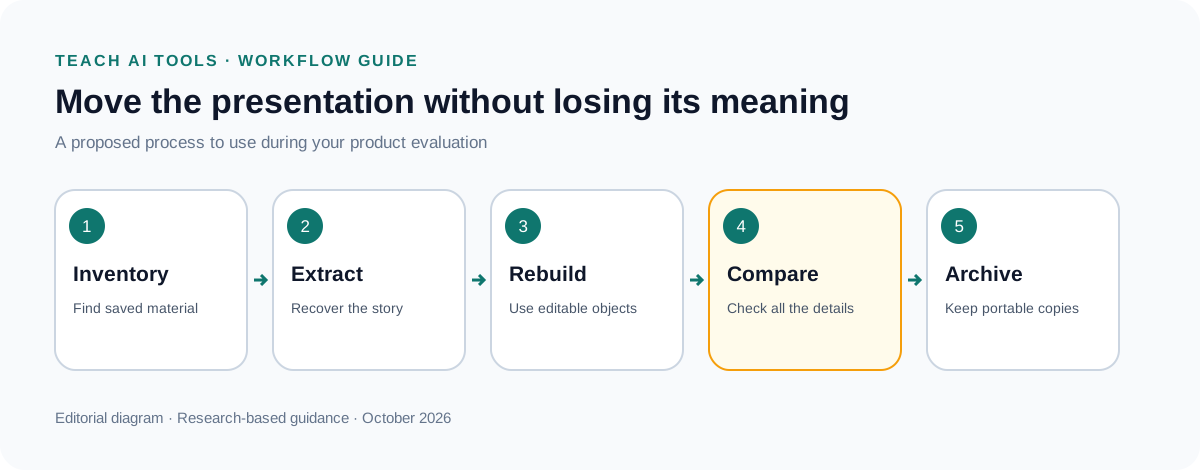
Create an inventory with one row per slide or section. Record its purpose, source material, key claim, visual asset, and any missing information. Label content that is obsolete. Migration is an opportunity to remove an old claim rather than automatically carry it into a fresh design.
Extract the story into plain text. Write the problem, the evidence, the proposed action, and the next step. Keep exact quotations and numerical statements separate from optional wording. This becomes the content specification for whichever tool you choose.
Build a short pilot containing the hardest slide types. Review it for factual accuracy, editability, readability, and export quality. Ask the next editor or presenter to use it. Their feedback can expose practical problems before you repeat them across the full presentation.
Only then rebuild the remaining slides. Work section by section and compare against the source inventory. Maintain a list of changes made during migration, especially corrected numbers, removed claims, and updated links. Keep the old reference copy until the replacement has been approved for use.
Rebuild charts from data when possible
A chart image preserves a picture, not necessarily the data behind it. If the original spreadsheet is available, use it as the basis for the new chart and verify the labels, units, time range, and totals. Do not estimate exact values from a low-resolution image unless the presentation clearly identifies them as estimates and that use is appropriate.
Keep the chart's message aligned with the evidence. A change in axis range or chart type can alter the visual impression without changing the numbers. Compare the old and new versions side by side and ask whether they communicate the same defensible conclusion.
If the underlying data cannot be recovered, consider whether the chart should remain. You may be able to replace it with a sourced statement or obtain a current dataset. An attractive reconstruction with invented values is not a responsible solution to missing information.
Recover notes, links, and context
Speaker notes often contain explanations that never appeared on the slide. If your saved export does not include them, check the original source documents or the presenter's own notes. Mark missing context explicitly. A replacement deck can look complete while leaving the presenter without essential qualifications.
Open every important link. Update references that now redirect to an unrelated page or no longer support the claim. A live domain is not enough; the linked page should still be the intended evidence or destination. Keep a source record for material likely to change.
Review embedded media as separate assets. Confirm that you have the file or an authorised, dependable link and that it works in the intended presentation environment. For critical content, prepare an alternative explanation in case the venue cannot access the media.
Use AI without inventing the missing material
A useful reconstruction prompt is: “Turn the verified outline below into a presentation draft. Preserve all figures, dates, qualifications, and source labels exactly. Suggest layouts, but mark missing evidence as SOURCE NEEDED. Do not invent customer results, quotations, market sizes, or references. Keep editable text wherever possible.”
Use AI to propose structure and clearer wording, then compare every substantive statement with the source. If the tool introduces a new benefit, statistic, or example, either verify it independently or remove it. Fluency should not become a substitute for evidence during migration.
Treat a suggested image as an illustration unless it documents something real. Label conceptual visuals where a reader could otherwise mistake them for product screenshots or actual results. For a factual chart or process, a simple verified diagram may be more appropriate than a generated picture.
Test portability before you commit
Download the intended final formats and open them with the actual software your recipients use. Change text, inspect a chart, follow a link, and run the slideshow. Check fonts, line breaks, image cropping, and notes. Record any limitations that matter to the next editor.
Test a portable viewing copy as well as the editable project. A PDF can be useful for reference, but it does not preserve every interactive feature. Decide what the fallback needs to communicate and make sure the static version contains that information.
Keep copies in an authorised storage location with clear names and dates. Record which file is the editable source and which is the approved distribution copy. Do not rely on a single share link as the entire archive of an important presentation.
Compare subscriptions against the handoff
Check the plan required for generation, branding, exports, and collaboration. A free trial may be enough to evaluate a tool, but it does not establish the cost of maintaining a team's recurring workflow. Read the billing interval and the conditions for additional members.
Ask what happens when you downgrade or stop paying. Verify continued access and export conditions through the current product terms or support documentation rather than assuming every platform behaves alike. Save usable copies before making changes to a subscription.
Include revision effort in the decision. If one tool creates a striking first draft but makes ordinary updates difficult, it may not suit a deck that changes frequently. Choose based on the presentation's useful life, not only the first hour of creation.
Frequently asked questions
Is “tom ai presentation” the same as Tome?
It may be a misspelling of Tome in this context. Verify the product name and domain before following a tutorial or entering account information. This guide addresses alternatives to the former Tome Slides presentation workflow.
Can these alternatives recover my old Tome files?
This guide does not establish any recovery capability. Rebuild from exports, documents, images, and other authorised copies you already possess. The historical shutdown notice described the end of access and deletion of stored files; do not assume an old share link remains recoverable.
Which alternative is closest to Tome?
That depends on what you valued: rapid visual drafting, web sharing, narrative layout, or editable slides. Compare the relevant workflow rather than searching for an identical interface. The pilot deck described above is a practical way to make that decision.
Can I keep the old design exactly?
You may preserve its appearance in saved images or a PDF, but rebuilding it as editable objects can require manual work. Decide which details matter and which can change. Preserve the information and usability before spending time on exact decorative matching.
For the wider category, visit our AI presentation tools guide. For classroom-specific design and verification, read AI presentation tools for teachers.