


My recommendation: start with the presentation software your school already supports. If you qualify for Canva Education, try its free education account first. If your school has enabled Gemini in Google Slides or Copilot in PowerPoint, evaluate that existing access before buying another subscription. For an independently purchased tool that creates editable slides inside either application, Plus AI has the clearest paid shortlist here: Basic for text prompts, Pro when document uploads matter.
Gamma is my suggested free trial for a short standalone deck. MagicSchool deserves a look when the same preparation session also involves lesson planning and differentiation. Curipod belongs on a different shortlist: student writing practice and feedback, rather than simply making a file to present.
These are editorial recommendations based on documented features and classroom needs. We have not hands-on tested these products, timed their output, or measured student learning. Official pages were checked on October 12, 2026. The sample slides below were created by Teach AI Tools to demonstrate a lesson structure; they are not screenshots or outputs from the compared tools.
The decision table: seven tools and what to choose
Use this table to reduce your shortlist to one or two tools. “Already licensed” means your administrator has enabled the required feature on your account; it does not mean every teacher can open the same button.
| Tool | Verified price or access | Concrete limit or distinction | Our suggested use |
|---|---|---|---|
| Canva Education | Free for eligible, verified K–12 educators and schools | Education access does not mean unlimited use of every AI feature | First choice to evaluate for eligible teachers who want visual lesson materials |
| Gamma Free | $0 | Up to 10 slides per prompt; PDF, PPTX, PNG and Google Slides exports | A short standalone lesson draft before paying |
| Plus AI Basic / Pro | Basic: $15 monthly or $10/month with annual billing. Pro: $25 monthly or $20/month annually, per user | Basic: 1,500 monthly AI credits. Pro: 3,000 and PDF/DOCX/TXT uploads | Editable decks in Google Slides or PowerPoint; choose Pro for source documents |
| Gemini in Google Slides | Requires an eligible Workspace or Google AI plan; no universal free teacher entitlement | Current whole-presentation generation documentation specifies desktop and English | Google-based schools where access is already enabled |
| Microsoft 365 Copilot | Academic offering advertised at $18 USD per user/month | Requires eligible licensing; free Copilot Chat is a different offering | PowerPoint-based schools considering a broader Microsoft AI license |
| MagicSchool | Free; Plus $12.99/month or $8.33/month with annual billing | Free generations are limited; Plus lists unlimited generations | Teachers wanting slide preparation alongside other teaching tools |
| Curipod | Free entry tier; school and district paid plans use custom pricing | Free writing sessions renew weekly; paid school plans expand practice access | Writing practice and feedback rather than a conventional slide-file purchase |
Prices are USD as displayed on the linked vendor pages, checked October 12, 2026. Annual figures are monthly equivalents with an annual commitment, not monthly cancellation prices. Taxes, local pricing, school contracts and existing subscriptions can change the amount you pay. Gamma's paid dollar amounts could not be reliably verified during this review, so this comparison makes no paid-price claim for it.
Sources: Canva Education, Gamma pricing, Plus AI pricing, Google Slides generation requirements, Microsoft education Copilot, MagicSchool pricing, and Curipod pricing.
Which tool should you actually pick?
Canva Education: start here if you qualify
Canva is the first option I would evaluate for an eligible K–12 teacher creating illustrated explanations, discussion prompts and classroom handouts. Its education offer is free following eligibility verification. That changes the buying decision: a teacher should establish what the existing account provides before purchasing a separate slide subscription. Higher education eligibility should not be inferred from the K–12 offer. See Canva's eligibility guidelines.
Canva's classroom AI resources include Magic Design for presentations and Magic Switch. The latter is relevant when lesson material already exists in a document: Canva documents its conversion of a Canva Doc into a presentation. Treat this as repurposing, with another editing pass needed to turn a document's prose into teachable slides. These capabilities are documented in Canva's classroom AI guides and its Canva Docs overview.
Choose it when: the lesson depends on diagrams, visual grouping and reusable classroom designs. Choose another starting point when: colleagues require continued editing in a particular PowerPoint or Google Slides template. In that situation, compare the final editable file with your school's template during a trial, rather than judging a web preview alone.
Plus AI: the paid pick for editable slides in your existing app
Plus AI works in both Google Slides and PowerPoint. Basic costs $15 monthly or $10 per user/month billed annually; Pro costs $25 monthly or $20 annually. Basic supplies 1,500 credits per month; Pro supplies 3,000 and adds document uploads. The seven-day trial includes 1,000 credits, requires a card and automatically bills after the trial. Source: Plus AI's plans and trial terms.
My pick is Basic for a teacher who writes concise source-led prompts, and Pro for one who regularly starts with PDF or Word material. A new subscription is easier to justify when it removes a specific recurring transfer step. If you already have an eligible native assistant, compare that first.
Do not interpret credits as a guaranteed number of completed lessons. A useful trial records the credits consumed by a draft and its revisions. Divide your monthly allowance by that observed cost to estimate your own workload capacity. That calculation will be more meaningful than assuming every generated deck requires one task or that every first draft is usable.
Gamma: the free pick for a compact standalone draft
Gamma Free permits up to ten slides per prompt and supports presentation exports. Plus removes Gamma branding and lists up to 100 slides per prompt. Those are generation limits, not proof of teaching quality or an unlimited monthly allowance. The verified features are on Gamma's current pricing page.
Start with Free for a six-slide explanation or revision activity. It is enough to evaluate whether a standalone authoring workflow suits you. Do not upgrade merely because a larger deck is possible: a short lesson with a question and an answer reveal can be more usable than an automatically expanded chapter summary.
The deciding test is the exported file. Does the diagram remain readable? Can you edit the labels? Do your notes survive? If a colleague must repair the export before using it, include that work in your decision. We have not tested these exports, so no compatibility score is assigned here.
Gemini in Google Slides: evaluate school access first
Google now documents generation of an entire editable presentation in Slides. Its workflow allows a prompt, source files from Drive, a reference presentation for style, and an outline review before generation. The current help page specifies desktop, English and an eligible plan. Source: Generate presentations with Gemini in Slides.
Pick this first if your school already uses Slides and the feature is enabled on your account. Keeping the deck in the shared workspace can simplify departmental editing. An English science deck with an approved outline is a sensible evaluation task; multilingual deck generation is not a capability established by that specific documentation.
School licensing is more complicated than “Gemini is free for teachers.” Access to the Gemini app and access to the same features inside Workspace are separate questions. Google's education edition comparison distinguishes the fuller Google AI Pro for Education offering. Ask the administrator to confirm whole-deck generation specifically before budgeting an alternative.
Copilot in PowerPoint: worthwhile when the wider license fits
Microsoft advertises its academic Microsoft 365 Copilot offer at $18 USD per user/month. Its free Copilot Chat offer is distinct from the paid Microsoft 365 Copilot integration. Eligible base licensing and assignment matter; the advertised price should not be read as including your school's entire Microsoft subscription. Sources: Microsoft education product page and education licensing guidance.
Evaluate it first in a PowerPoint-based school that also wants AI assistance across Microsoft applications. For a teacher buying only a slide generator independently, compare that wider license cost with the focused Plus AI options. Neither recommendation is a verdict on output quality; it follows from where the editable work needs to live.
Microsoft's presentation creation help describes the available creation workflows. Follow the documentation for the interface you actually have: features in a changing agent workflow should not be assumed identical to every other Copilot creation route.
MagicSchool: useful when slides are one part of preparation
MagicSchool's presentation generator accepts lesson material and supports adjustments such as depth, language and slide count. Its appeal is the teaching context around the deck. A teacher preparing an explanation, a scaffold and a follow-up exercise can assess those together. See its presentation generator documentation.
Free access has limited generations. Plus lists unlimited generations and costs $12.99 monthly or $8.33 per month billed annually. The pricing page does not provide a universal numeric free-generation allowance, so none is invented here. Source: MagicSchool pricing.
Try Free before subscribing. Choose Plus only if the generation limit interrupts work you actually do and the broader teaching tools are useful to you. An “unlimited” generation label does not remove the need to check the deck's export and classroom fit. For a department that primarily shares slide files, those requirements should still determine the choice.
Curipod: choose for student writing, not a slide-file requirement
Curipod's current pricing emphasises writing practice and feedback. The free tier offers weekly writing sessions and unlimited student writers subject to limited usage. School and district plans are quoted rather than sold at a verified universal individual subscription price. Source: Curipod's current plans.
Put it on your shortlist when the lesson outcome is a student response that receives feedback. For example, a science class might write a short explanation using the vocabulary introduced in a teacher's deck. That is a different task from turning a chapter into an editable PPTX for a colleague.
If portable slides are the entire requirement, start with one of the slide-making options above. If writing practice is central, evaluate Curipod's student workflow, the available sessions and your school's approval process. Do not use an old individual-premium price from an earlier review to plan a current school purchase.
A real editorial example: six slides for ages 9–11
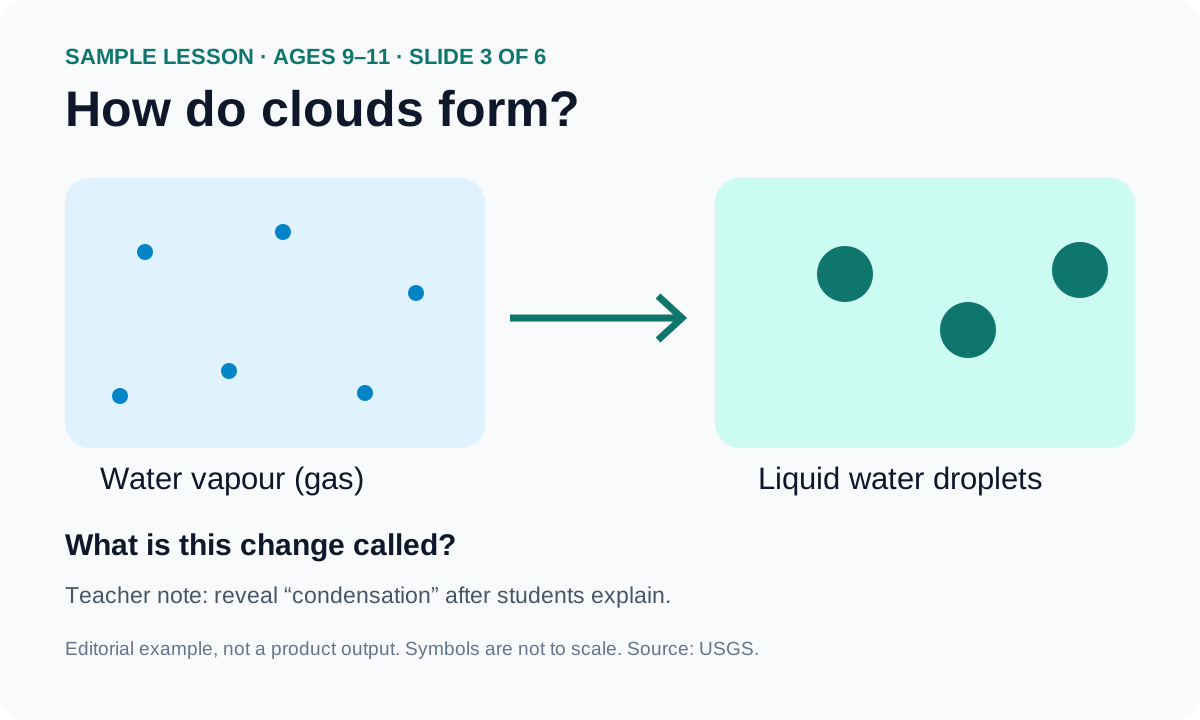
The following is an original sample of what a compact introductory water-cycle lesson could contain. It was authored for this guide, not generated in Gamma, Canva or any other compared product. It demonstrates the target structure and gives you a consistent brief to use in a trial. It does not demonstrate a vendor's quality.
Open the six-slide sample with teacher notes. The page works without an account and includes a print button for saving a PDF through your browser. It is a simple HTML teaching sample, not a PowerPoint download.
| Slide | What students see | Teacher purpose and notes |
|---|---|---|
| 1. Where did the puddle go? | A question about a puddle becoming smaller after rain | Elicit an explanation before introducing vocabulary; do not assume one observation proves the whole model |
| 2. Water can change form | Liquid water and water vapour, with evaporation labelled | Explain the liquid-to-gas change; do not portray water vapour as visible smoke |
| 3. How do clouds form? | Condensation: vapour becomes liquid droplets | Distinguish gas from the droplets illustrated in the simplified cloud |
| 4. Water returns to the surface | Precipitation and collection on land and in water | Explain that rain is one form of precipitation; this introductory model omits many pathways |
| 5. Explain the change | “Water vapour becomes liquid droplets. Which process?” | Students choose and explain before the answer is shown |
| 6. Exit question | “How are evaporation and condensation different?” | Expected response identifies opposite changes of state |
The scientific definitions follow the USGS water-cycle glossary: evaporation changes liquid water to gas; condensation changes water vapour to liquid. The sample is an introductory model, not a complete representation of groundwater, transpiration, storage and all other water movements.
A deliberate feature of this sequence is the question before the answer. The fifth slide does not supply the correct response in the title. In the sample page, its answer is behind an explicit reveal. That makes the example usable as an assessment prompt and avoids a common presentation mistake: calling a slide a quiz while displaying its answer above the choices.
Before and after: change the teaching task, not just the layout
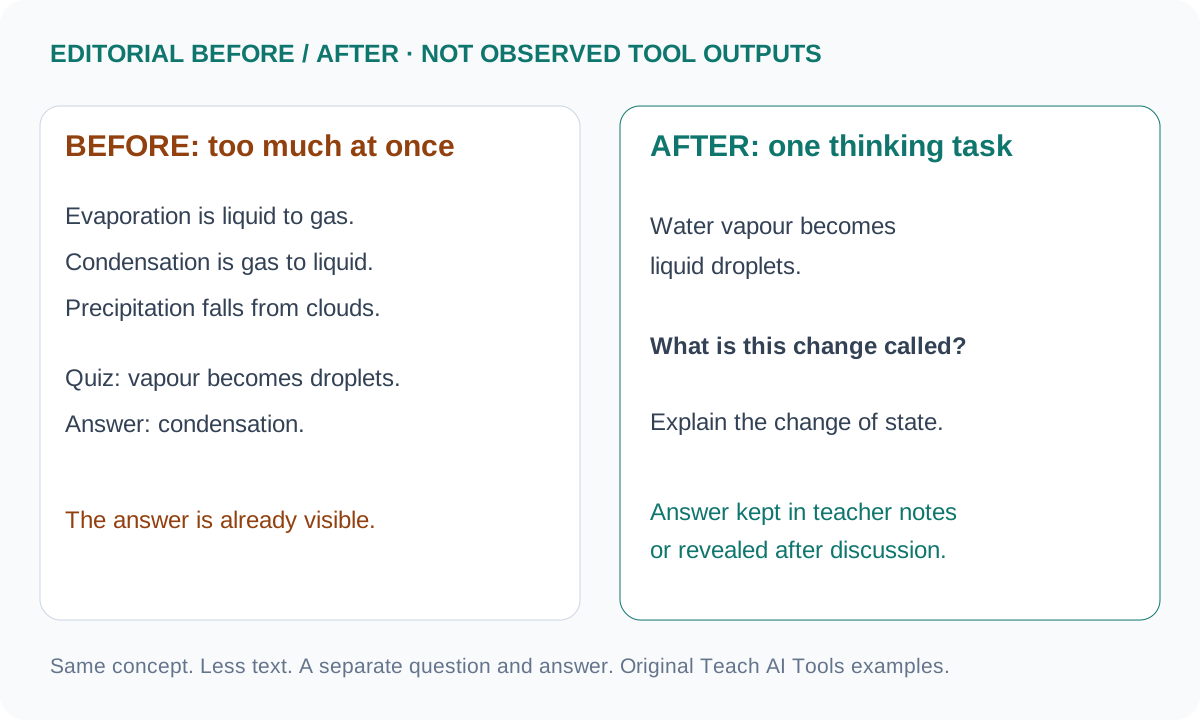
The “before” example is a constructed weak slide, not an observed product output. It bundles definitions and a quiz answer together. The “after” example isolates one change of state, asks students to name it, and moves the answer to teacher notes or a later reveal. Both are original editorial examples.
The improvement is specific. Students must retrieve “condensation” and connect it to gas becoming liquid; the teacher can listen to their reasoning. A title such as “Condensation” above the question would remove that retrieval demand. A decorative image would not solve it either. When requesting revisions from an AI tool, specify this instructional change rather than asking vaguely for a more engaging slide.
A useful revision prompt is: “Keep the scientific meaning. Replace the paragraph with one diagram and one question about the change of state. Do not show the answer on the question slide. Put the expected answer and explanation in teacher notes.” This tells the software what to preserve, what to remove and where the answer belongs.
Two more lesson briefs: mathematics and history
Ages 10–12: equivalent fractions
Use the objective “Explain why three quarters equals six eighths.” Begin with two equal-sized rectangles: divide one into four equal parts and shade three; divide the other into eight equal parts and shade six. Keep the wholes visibly equal. Unequal wholes would confuse what the fraction comparison is meant to show.
The next slide asks students to complete 3/4 = ?/8, followed by a separate worked explanation: multiplying numerator and denominator by two produces 6/8 without changing the represented proportion. End with 2/3 = ?/6; the expected answer is 4/6. These are teacher-authored examples, not outputs inspected from a product.
For this lesson, editable mathematical notation and correctly partitioned diagrams matter more than generated decorative images. Ask the tool for plain shapes and text, then inspect the number and equality of the parts. Choose your existing Slides or PowerPoint workflow if it gives you the easiest manual control over those objects. A diagram you can correct quickly is preferable to one that has to be regenerated repeatedly.
Ages 14–16: evaluating a historical source
Use a teacher-selected extract whose origin, date and context are known. The objective is “Make a claim about what this source supports and explain one limitation.” A compact deck can introduce context, display the extract, ask who created it and for whom, then model a claim supported by one quotation from the supplied text.
Ask the AI to organise the provided material and propose questions. Do not ask it to invent a period quotation or a historian's opinion. Include a final task asking students what additional evidence would help them assess the claim. The expected response can name another source type and explain why it would be useful; it need not have one fixed wording.
For this brief, precise quotation handling and room for source text are decisive. A presentation that reduces the extract until it cannot be read has failed the practical requirement, however attractive the theme. A discussion-based lesson may need fewer slides and more time on the source itself. Tool selection should follow that need rather than a desire to fill a template.
A source-to-slides workflow you can reuse
Start with a small source pack: the curriculum objective, an approved extract or textbook section, vocabulary and the answer key. Remove information about identifiable students unless your school explicitly permits using it in that service. This task does not require personal pupil data.
Write the sequence before generating the deck: opening question, explanation, example, guided practice and exit task. Ask for the outline first and decide whether each slide earns its place. For a six-slide lesson, that is easier to review than a finished deck whose sequence is already buried in a theme.
Use a prompt such as the following, replacing the bracketed parts with your own material:
Create a six-slide lesson outline for [age group] on [topic]. Students should be able to [observable objective]. Use only the source material below for factual claims. Mark missing information instead of inventing it. Include an opening question, a concise explanation, one worked example, guided practice and an exit question. Keep answers off question slides and put them in teacher notes. List the intended diagram and note for every slide. Return the outline before creating the presentation. Source material: [approved text].
Once the outline is sound, generate the draft. Revise one problem at a time: shorten a paragraph, enlarge an extract, correct a label or separate a question from its answer. A request to “improve everything” makes it difficult to tell which change helped.
Finish with three separate checks. The content check compares explanations, quotations and diagram labels with the source pack. The answer check solves each exercise independently, including distractors and note-only answers. The delivery check opens the actual file on the software or device you will teach from. Check the back-of-room reading distance, not just a laptop preview. This is the point where export quality becomes relevant to buying.
How to run a fair trial before paying
Give the same six-slide brief and source pack to each shortlisted tool. Use your normal lesson template where supported. Record the task, plan, credit consumption, missing features and manual corrections. This guide reports no measured generation or editing times, because none were tested.
If speed matters to your decision, measure the entire preparation session yourself: entering sources, correcting the outline, editing slides and opening the final file. Comparing only the initial generation time would miss the repair work. The best personal result is the one that leaves a usable lesson with manageable edits, not simply the first draft that appears.
Before starting a card-backed trial, note its renewal date. Compare monthly billing with the full annual commitment. For a single teacher, keep the budget tied to a demonstrated need: document uploads, native editing, additional generations or student feedback. Those are concrete reasons to upgrade; “better AI” alone is not a classroom requirement.
For a department purchase, use one colleague as a recipient of the exported or shared deck. Can that colleague edit the example, find the answer notes and reuse the lesson without signing up for another service? That handoff is part of the workload. If it breaks, resolve it before buying seats for the team.
Questions teachers ask
What is the best free AI presentation tool for teachers?
For an eligible K–12 teacher, our first recommendation to evaluate is Canva Education. For a standalone short-deck trial, Gamma Free is a practical alternative. An already-enabled school assistant may be the least expensive starting point, but access must be confirmed for the specific presentation feature. These recommendations follow documented access and workflow, not a hands-on ranking of output quality.
Should I choose Plus AI Basic or Pro?
Choose Basic if you supply text prompts and want editable slides in your existing app. Choose Pro if uploading PDF or Word source material is a recurring requirement. Use the trial to estimate your own credit consumption and correction effort before committing annually. There is no reliable deck-count guarantee implied by the monthly credits.
Are these example slides screenshots from the tools?
No. They are original editorial samples with a source-grounded science explanation, student questions and teacher notes. They show what to request and inspect. They do not establish how accurately any particular vendor would reproduce that lesson, nor do they support claims about its speed or classroom learning gains.
Can AI make the complete lesson for me?
It can help draft a presentation, but a deck is only one part of teaching. You still choose the objective, the level of explanation, the evidence and the task that tells you whether students understood. Start with one repeatable lesson brief and one suitable tool. A correct six-slide sequence with a useful question is a reasonable first target.