

A video editor can remove a pause, generate captions, and help organise footage. It cannot decide on your behalf whether a shortened answer still means what the speaker intended. That is the central tradeoff when choosing AI editing software: automation can help with specific production tasks, but the finished video still needs editorial judgment.
Start with the recording you actually make. A narrated tutorial, a two-person interview, and a travel sequence contain different editing problems. Transcript-based editing may be useful for spoken material, while a visually driven sequence may depend more on precise timing, colour, sound, and control over individual shots.
This research-based guide considers Descript, Adobe Premiere, DaVinci Resolve, and CapCut. The product descriptions use official pages checked on October 12, 2026. The proposed YouTube workflow is an editorial method you can adapt; it is not a claim of hands-on comparative testing, guaranteed time savings, or increased views.
Identify the bottleneck before choosing software
Write down the part of editing that repeatedly delays publication. Perhaps you spend too long finding a sentence in a recording, correcting captions, balancing sound, or turning a horizontal video into a vertical excerpt. Choose a tool that addresses that problem without making the rest of the project harder.
Distinguish footage creation from footage editing. Generating a new video clip from a prompt is a different task from cutting an existing interview. Some products offer both, but a striking generated scene does not demonstrate how well an editor preserves speaker timing or manages a long recording.
Also define the deliverables. You may need a main video, a caption file, a thumbnail still, and a short excerpt. List them before the trial. The best workflow is the one that can produce the complete set reliably, with the changes you expect to make after feedback.
Four editing approaches to compare
| Tool | Documented strength to investigate | A suitable trial project | Main question |
|---|---|---|---|
| Descript | Editing recorded speech through a transcript | A narrated tutorial or interview | Do text edits preserve natural meaning and pacing? |
| Adobe Premiere | Timeline editing with AI-assisted tasks | A video combining speech and multiple visual sources | Can you refine automated edits precisely? |
| DaVinci Resolve | Editing, colour, audio and finishing | A project needing a complete post-production environment | Which required features need Studio? |
| CapCut | Automatic captions and caption styling | A short video with spoken instructions | Are words, timing and output options suitable? |
This table is a shortlist by task. It does not claim that every listed feature is available free, on every device, or in every region. Confirm the account, software version, and export conditions used for your own project.
Descript: investigate a transcript-first workflow
Descript describes an editor that transcribes footage and lets users change the video by editing the text. Its official video-editing page also discusses speech cleanup and other assisted editing features. That makes it relevant when the spoken content is the main structure of the video. Source: Descript video editing.
For a useful trial, choose a recording containing a repeated sentence, an awkward pause, and one section that needs moving. Make the changes through the transcript, then watch the resulting transitions. Listen for clipped words, unnatural breaths, or a visual jump that needs an additional shot to cover it.
Do not approve the edit solely by reading the transcript. The text can appear coherent while the speaker's delivery sounds abrupt. Keep context around answers, especially in an interview. A shortened sentence should preserve qualifications and conditions that affect its meaning.
Adobe Premiere: investigate the assisted timeline
Adobe documents Text-Based Editing in Premiere, where a transcript can be used to select and arrange material, alongside Speech to Text for captions. The relevant distinction is that these features sit within a broader editing workflow where the timeline can be refined. Source: Adobe Premiere AI editing.
A representative trial should include more than a talking head. Add a screen recording, a title, and a supporting image. Build an initial cut from the spoken content, then inspect the visual sequence. This reveals whether the workflow supports the actual mix of material in your channel.
Plan for the learning involved in the editor itself. Automation does not eliminate decisions about tracks, timing, framing, or export settings. If you already know another editing environment, compare the complete revision process before changing tools for one attractive feature.
DaVinci Resolve: investigate the full finishing workflow
Blackmagic Design presents DaVinci Resolve as combining editing, colour correction, visual effects, motion graphics, and audio post-production. It distinguishes the free application from DaVinci Resolve Studio and its additional capabilities. Check the current comparison for any AI-assisted feature you specifically require. Source: DaVinci Resolve.
Use a small version of a demanding project for your trial. Include footage with different lighting, speech that needs balancing, and a section requiring careful visual timing. The question is whether you can complete and revise the whole video efficiently, rather than whether the product has the longest feature list.
Check how the application performs on your own hardware with your recording format. A smooth promotional demonstration does not establish performance on a particular laptop. Keep the source files intact and use the software's documented project and media workflow as you learn.
CapCut: investigate captions with a real sample
CapCut's official automatic-caption page describes generating captions from speech and editing their appearance. This is relevant for creators who need readable spoken text in a short-form or instructional video. Feature access and export options should be confirmed in the actual platform and account you use. Source: CapCut auto captions.
Choose a sample containing names, a number, and a technical term. These are the details you should proofread deliberately after transcription. Check line breaks and placement as well as spelling. A correctly recognised sentence can still be hard to read if it appears too briefly or covers the subject.
Treat caption styling as a communication decision. Heavy animation and constant highlighting may fit some formats, but they can compete with a screen demonstration. Use a style that helps viewers follow the material, and preview the actual exported file rather than assuming the editor view is identical.
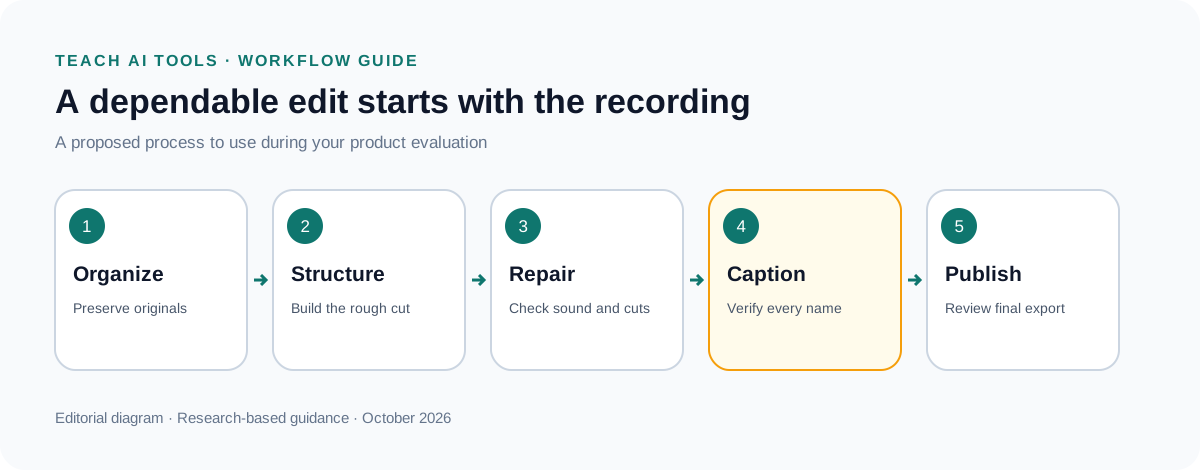
A practical workflow from recording to final file
Organise the source material before editing. Keep original recordings in a clearly labelled location and work from a project that references them predictably. Separate camera footage, screen captures, audio, music, images, and exports. A simple folder structure can prevent accidental overwriting and make later corrections easier.
Create a rough cut around the viewer's question. Remove obvious false starts and duplicate explanations, but preserve the context needed to understand the answer. If the video promises to show a process, make sure every essential step is actually demonstrated rather than described only in the introduction.
Next, repair the transitions and sound. Watch edits that were made automatically. Check that speech begins and ends naturally and that the supporting visual appears when the viewer needs it. Add a cutaway or screen detail where it clarifies the explanation, not merely to disguise every pause.
Then add and proofread captions, titles, and any on-screen numbers. Export a draft and review it outside the editing application. Only after that review should you prepare the final upload file and associated materials. Treat the exported video as the deliverable that must pass inspection.
Use AI for the first pass, then review intent
Automatic removal of repeated words or pauses can be helpful, but repetition sometimes has a purpose. A speaker may repeat a key instruction for emphasis or pause while a viewer examines the screen. Judge each edit against the intended experience rather than applying a universal rule that shorter is always better.
For interviews, preserve the relationship between a question and answer. Moving an answer beneath a different question can change its meaning even if the words remain untouched. Keep a record of the original context when the material is sensitive or when several people will review the cut.
For tutorials, check cause and effect. If you remove a click or a waiting period, make sure the viewer can still follow what changed. A brief label explaining that a process is complete can be clearer than an unexplained jump between two different states of the screen.
Give spoken accuracy its own review pass
Listen without relying on the captions. Check names, instructions, qualifications, and numbers. If an automatic audio treatment changes the character of the voice or obscures a word, compare it with the original. More processing is not automatically better sound.
Then read the captions while listening. Confirm technical vocabulary and proper names using the source material. Review punctuation where it changes the meaning. Split captions at sensible phrase boundaries so the viewer does not have to mentally reconstruct a sentence across awkward fragments.
Keep the spoken and written versions aligned when correcting an error. If a number is wrong in the recording, silently changing only the caption can create two conflicting messages. Decide whether to re-record, add a clear correction, or restructure the section so the final video communicates one accurate answer.
Make screen recordings readable
Preview the video at the likely viewing size. Tiny interface text can be legible during editing and unreadable in a mobile player. Crop or zoom toward the relevant area when needed, while keeping enough context for the viewer to understand where the action occurs.
Avoid placing captions over the controls or results being demonstrated. If the lower part of the screen contains essential information, change the caption position or the composition. The viewer should not have to choose between reading your explanation and seeing the step it describes.
Check that the recorded interface still matches the instructions. If the product changed after recording, identify the version or revise the affected section. Do not use editing tricks to conceal a meaningful mismatch between the promised procedure and what viewers can actually do.
Create a useful short excerpt
Select an excerpt that can stand on its own. A dramatic sentence may attract attention but misrepresent the longer explanation if its conditions are removed. Include the minimum context needed to understand the point and make the ending feel complete.
When reframing a horizontal recording, inspect every important moment. The subject, demonstration, or second speaker may move outside the new crop. Automated reframing can be a starting point, but the final composition needs a human review through the whole excerpt.
Recheck captions after changing the aspect ratio. Text that fits a horizontal frame may require new line breaks in a vertical one. Verify that any call to action makes sense in the excerpt's destination; a reference to material visible only in the full video may need a clearer explanation.
Compare pricing through a finished-video trial
Identify every cost relevant to your production. A plan might limit transcription, AI usage, exports, storage, or collaboration. Check whether the price assumes annual billing and whether the required feature is included in the tier you are considering. Use current official checkout information for your region.
Run one complete project before making a long commitment. Record the time spent importing, editing, correcting, exporting, and revising after feedback. If an automated task saves time but creates extra cleanup later, count both. This gives you a more useful comparison than a claim about one-click speed.
Include the handoff if you work with an editor. Can they open the project, locate the media, and change the captions? A workflow that depends on one person's account may create avoidable friction. Agree on the project format, source ownership, and final delivery requirements before scaling production.
A final review checklist that catches real problems
Watch the opening and ask whether it accurately promises what follows. Check the first frame and any silence before speech begins. Confirm that the title, spoken introduction, and actual content describe the same video. A mismatch is an editorial problem even when the export is technically correct.
Watch the middle without skipping. Review every jump, caption, graphic, and reference to an external source. Check that a music change does not make speech harder to understand. If the video contains a quotation or factual claim, keep the source record with the project.
Watch the ending and confirm that it does not cut off a word, display an obsolete link, or continue with unintended empty footage. Then play the file on another suitable device if available. Save the final approved version with a clear name and archive the editable project alongside it.
Common buying mistakes
The first is choosing from generated demos rather than your own recording. A tool may excel at a format you never produce. Use a trial that includes the difficult parts of your channel: accents, overlapping speech, detailed screen captures, or mixed lighting, as relevant.
The second is assuming that free software includes every advertised AI feature. Product pages often describe an entire family of plans. Confirm the specific feature and export in the account you will use. A trial should end with a usable file, not just a promising preview.
The third is expecting editing software to repair an unclear script. If the explanation lacks a logical sequence, automated cutting may simply make the confusion shorter. Improve the outline and recording process as part of the workflow; that can reduce the amount of repair needed later.
Frequently asked questions
Which AI editing software is best for YouTube?
Choose according to your material. Transcript-led work makes Descript worth investigating; a detailed timeline workflow makes Premiere relevant; a complete finishing environment makes Resolve relevant; caption-focused short-form work makes CapCut relevant. This guide has not measured a universal winner.
Can AI edit my entire video automatically?
Some tools automate substantial tasks, but you should still review meaning, timing, sound, captions, and the final export. Automatic selection does not establish that the result is accurate, coherent, or appropriate for the audience.
Is a video generator the same as a video editor?
No. Generation creates new visual material, while editing arranges and modifies material into a finished sequence. A product can contain both capabilities. Choose based on the task you need to complete and the control required for revisions.
Should I replace my current editor?
Only after a representative trial demonstrates a useful improvement to your full workflow. A new feature may justify adding a limited step rather than moving every project. Consider the cost of learning, migration, and collaboration along with the feature itself.
For a wider category overview, see our AI video editing software guide. For original motion rather than recorded footage, read the beginner animation workflow.